Module 4
Linux & Basic Tcl Script
Linux - Topics Covered
TCL - Topics Covered
Introduction to Linux Operating System
1. What is an Operating System (OS)?
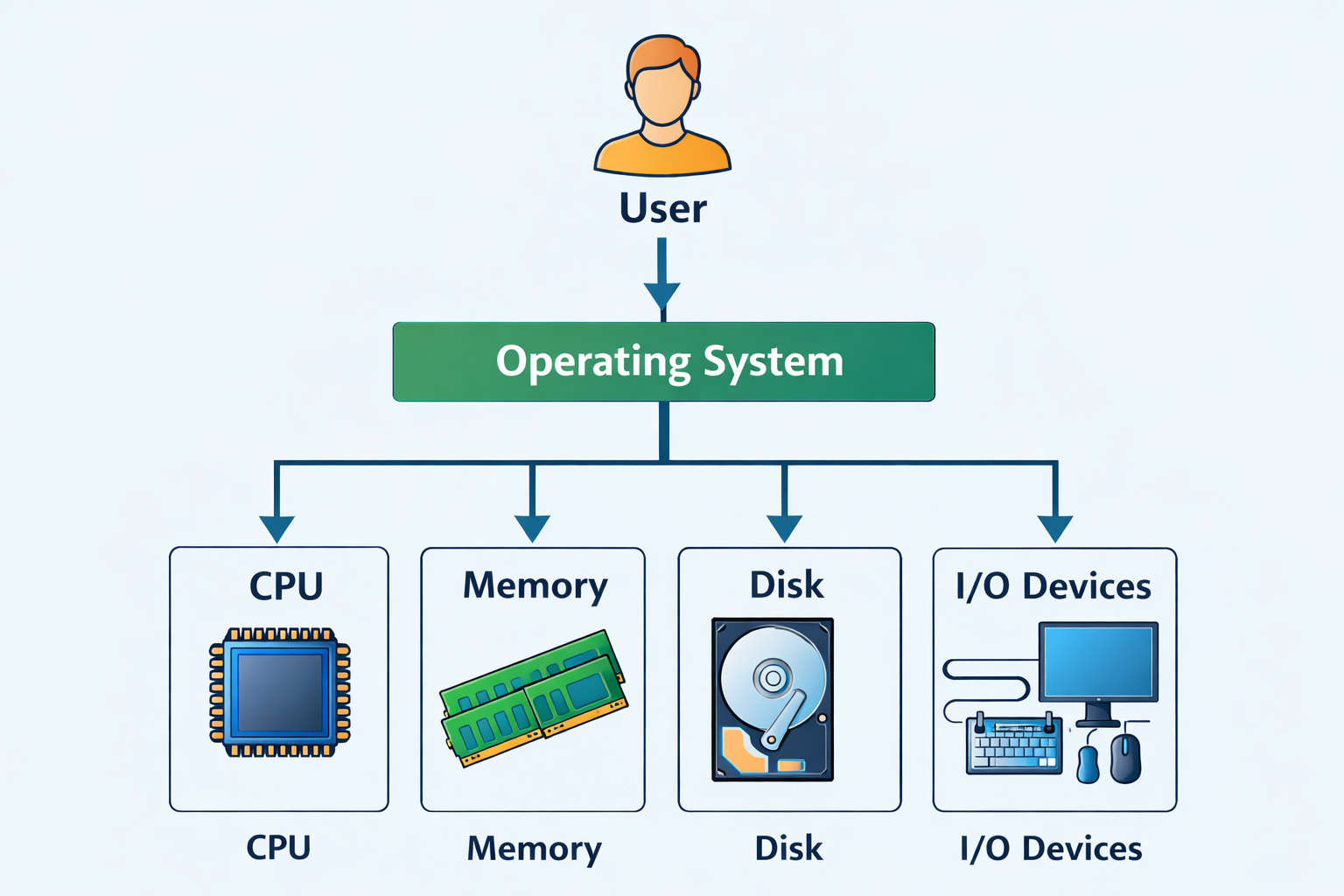
Main functions of an Operating System
- Controls and manages hardware (CPU, memory, disk, I/O devices)
- Allows users to run applications
- Manages files and folders
- Provides security and access control
Without Operating System
- Computer cannot work
- User cannot interact with hardware directly
Examples of Operating Systems
- Windows
- Linux
- macOS
- Android
- iOS
2. What is Linux?
Key points about Linux
- Developed by Linus Torvalds (1991)
- Open source (source code is freely available)
- Highly secure and stable
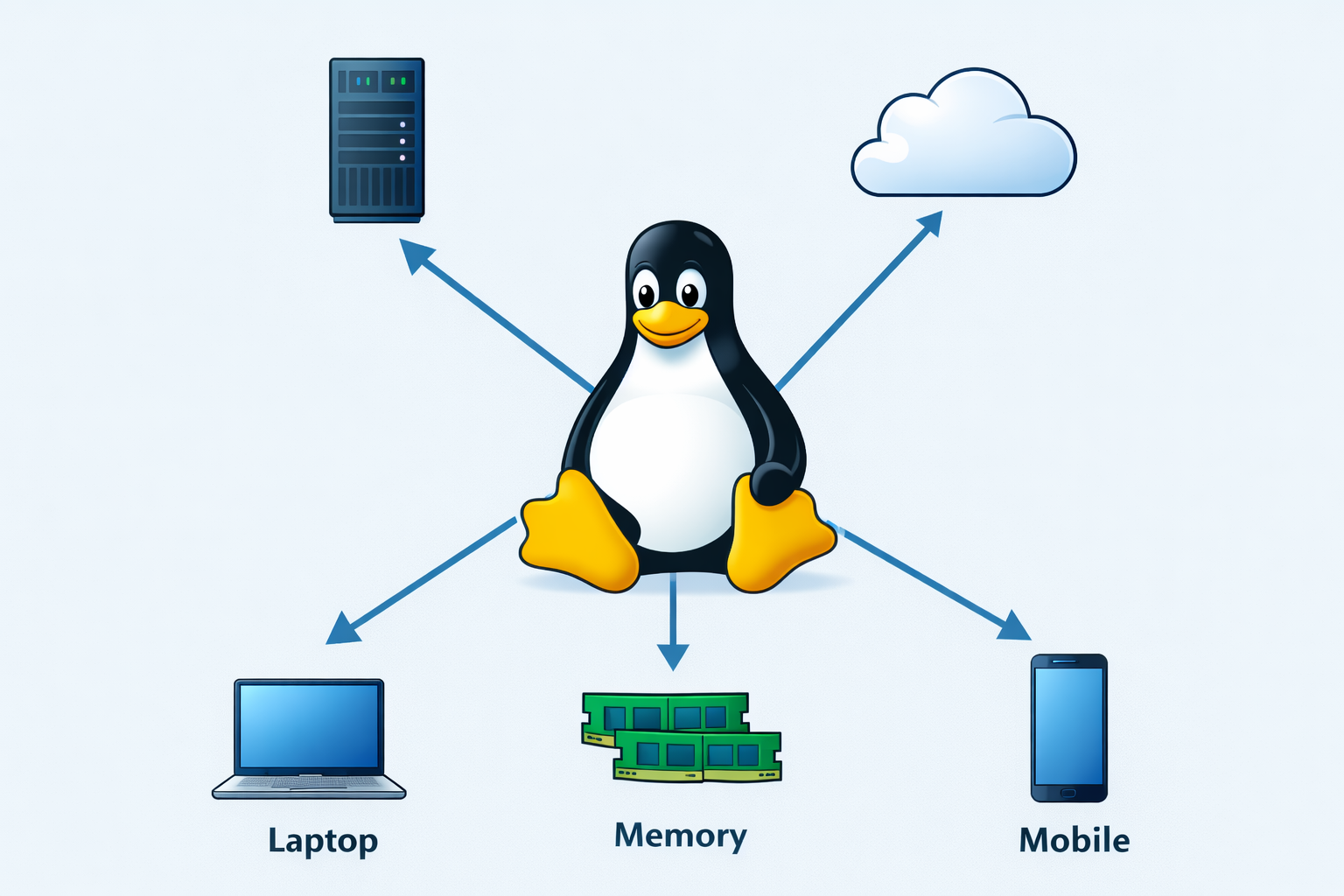
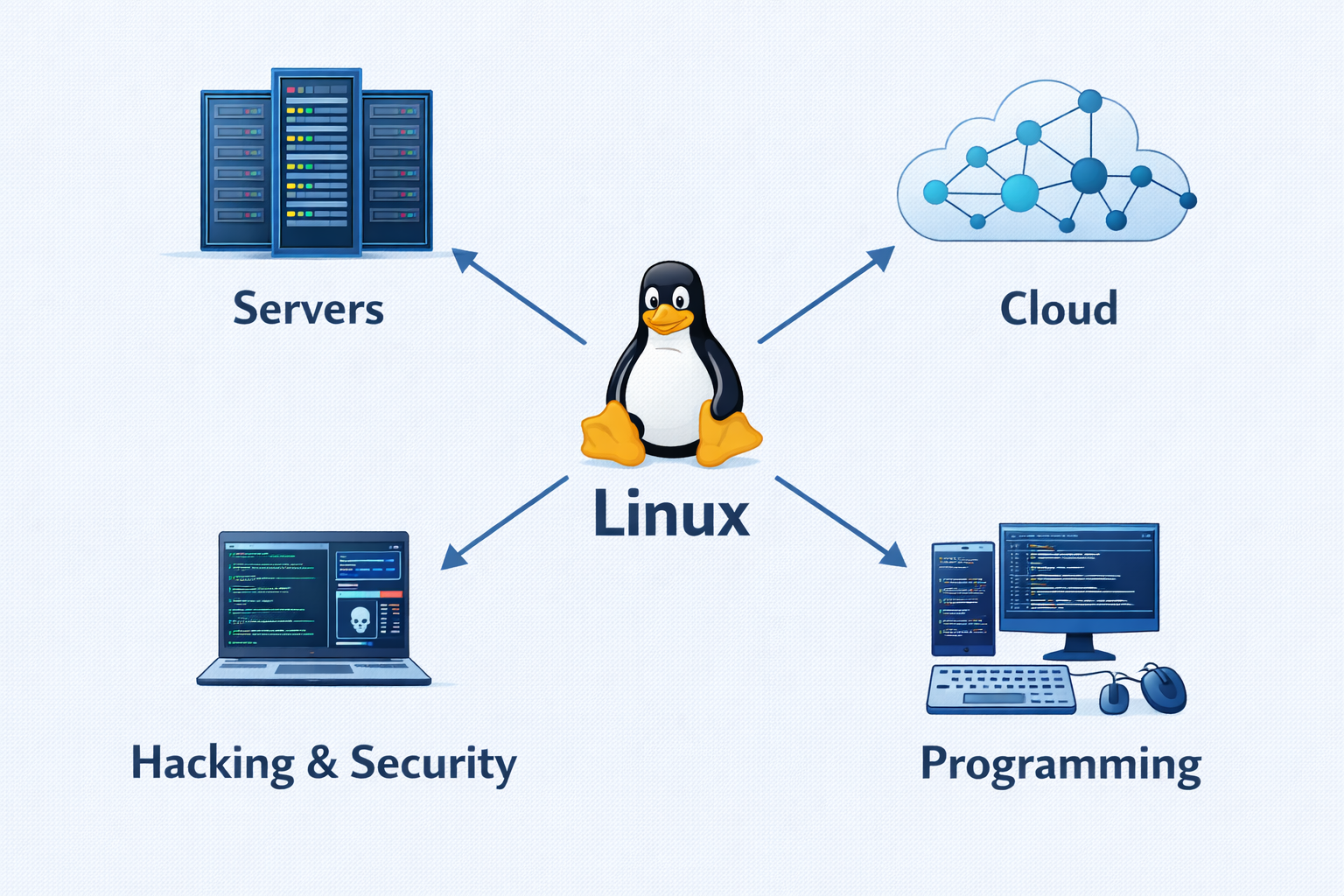
- Used in servers, mobiles, supercomputers, cloud, and embedded systems
Where Linux is used
- Servers (Google, Amazon, Facebook)
- Mobile phones (Android)
- Cloud platforms
- Cybersecurity tools
- Programming and development
3. Why Do We Need an Operating System?
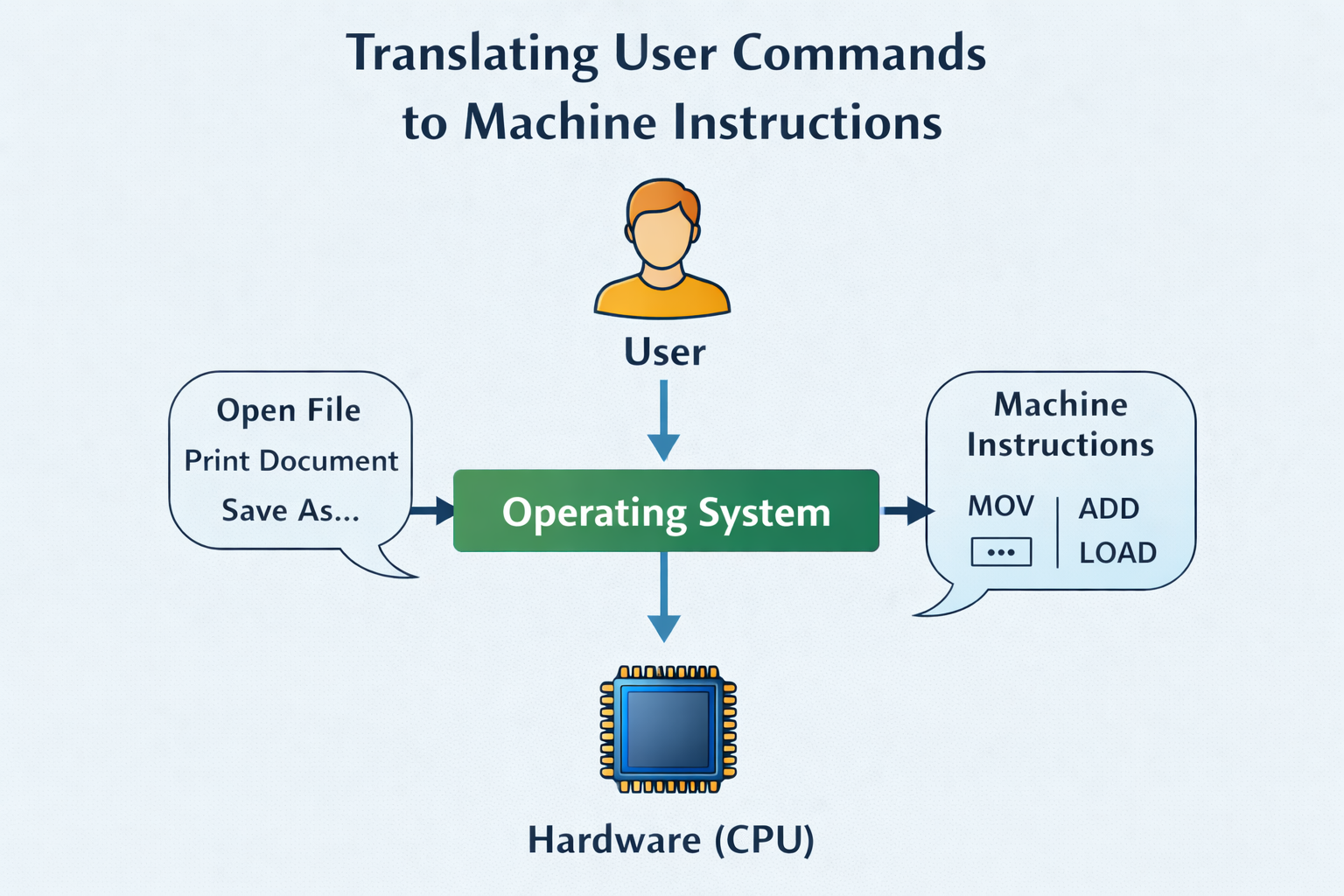
- Hardware understands only binary (0s and 1s)
- Users understand commands and applications
- OS converts user instructions into hardware operations
Roles of OS
User | OS | Hardware |
Gives command | Translates | Executes |
4. Components of Linux Operating System
- Kernel
- Shell
- Utilities / Applications
5. What is Kernel?
Definition
Functions of Kernel
- Process management (CPU scheduling)
- Memory management
- Device management
- File system management
- System call handling
Important Point
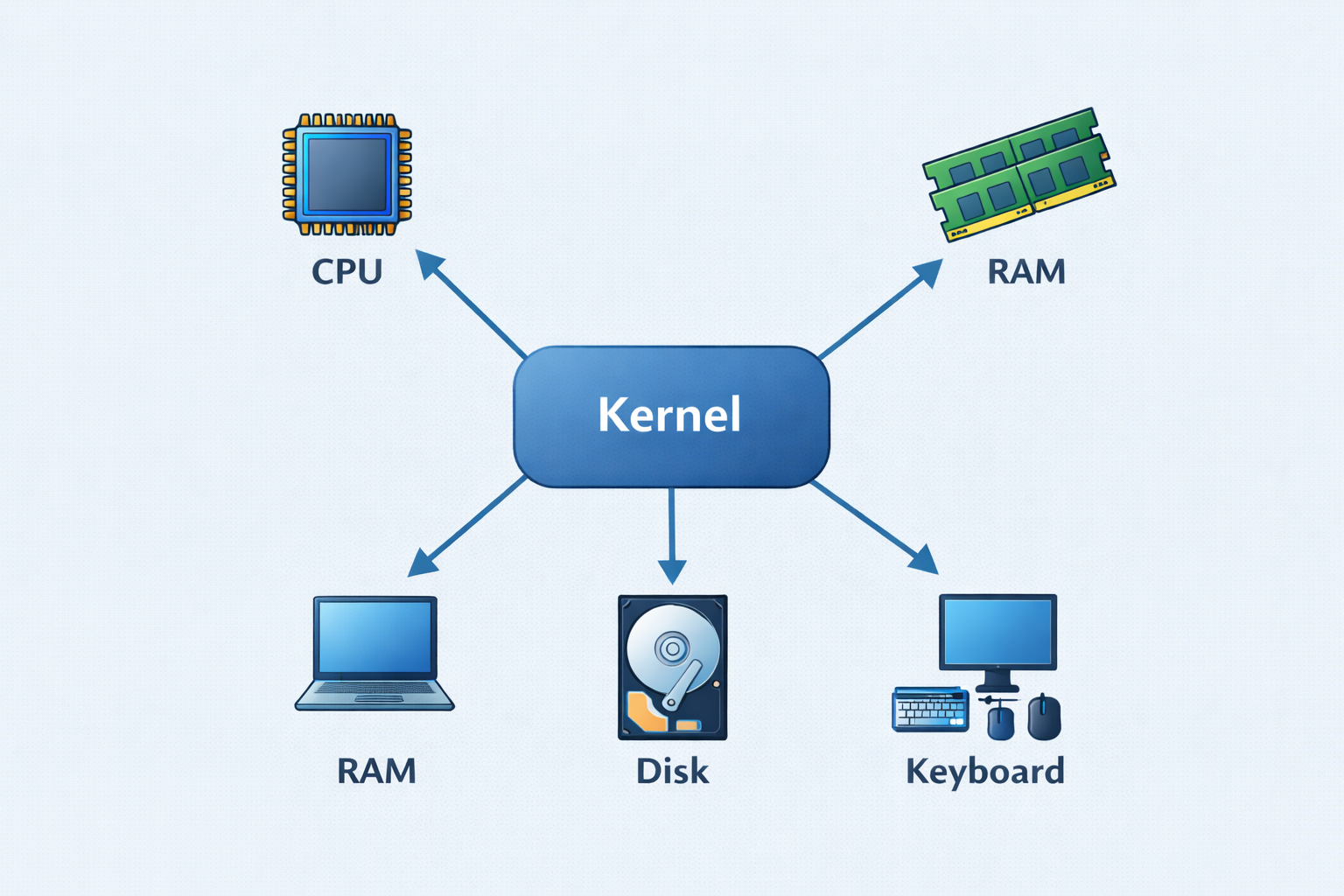
6. Why Kernel is Important?
- No memory management
- No multitasking
- No device communication
- System will crash
Types of Kernels
- Monolithic Kernel (Linux)
- Microkernel
- Hybrid Kernel
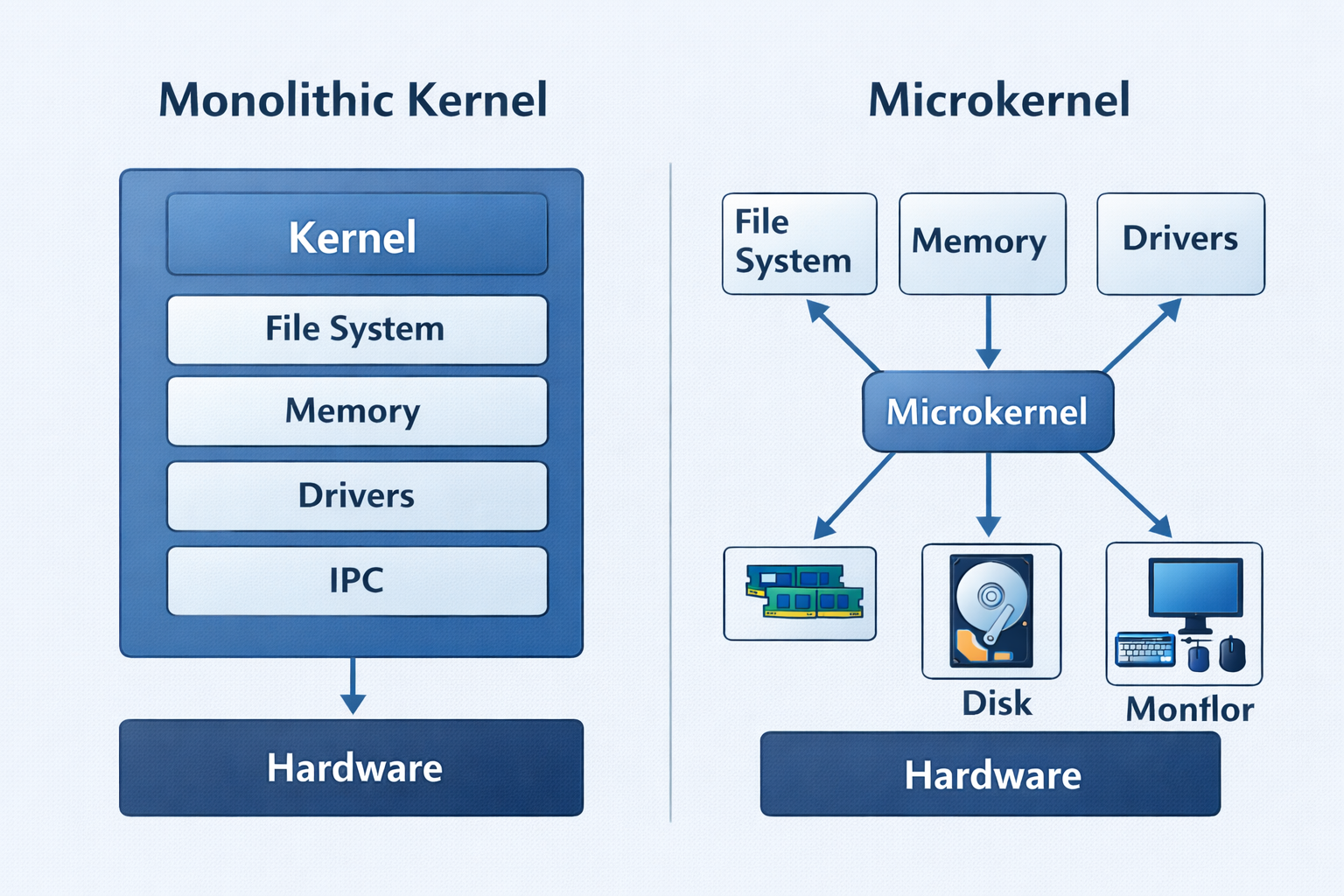
7. What is Shell?
Definition
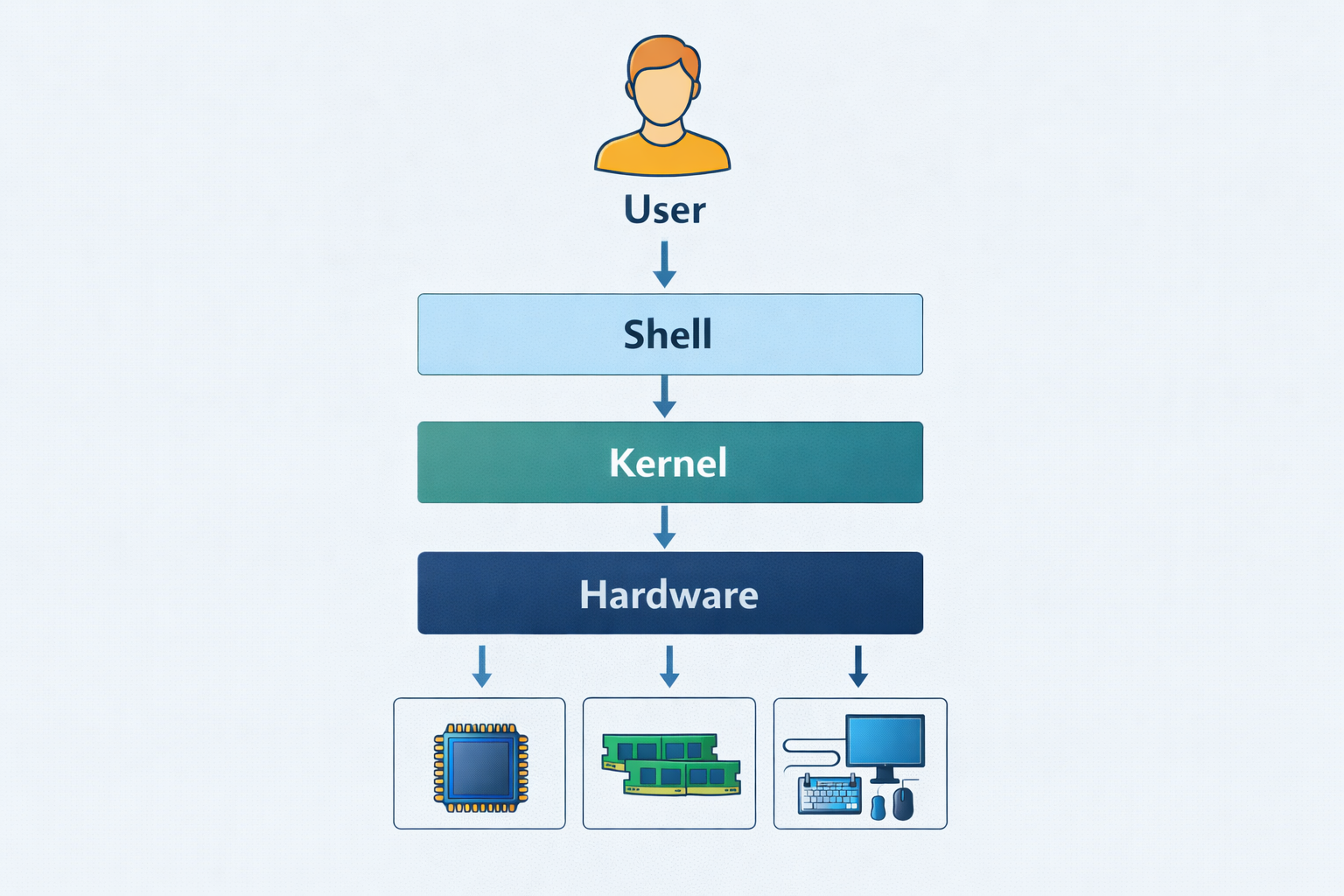
Shell works like a translator
- User → Shell → Kernel → Hardware
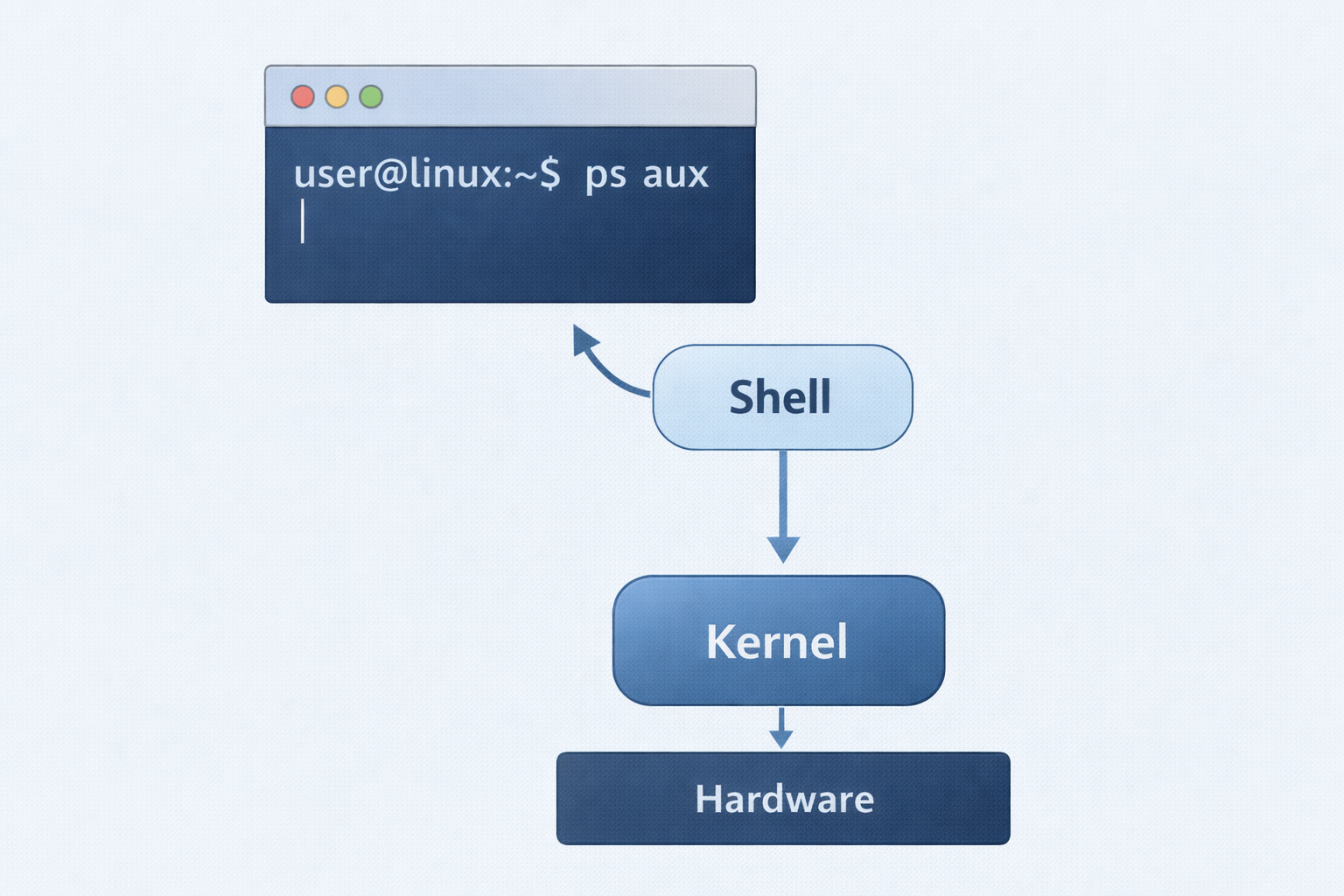
8. Types of Shells in Linux
Shell Name | Description |
Bash | Most common shell |
Sh | Bourne Shell |
Zsh | Advanced shell |
Fish | User-friendly shell |
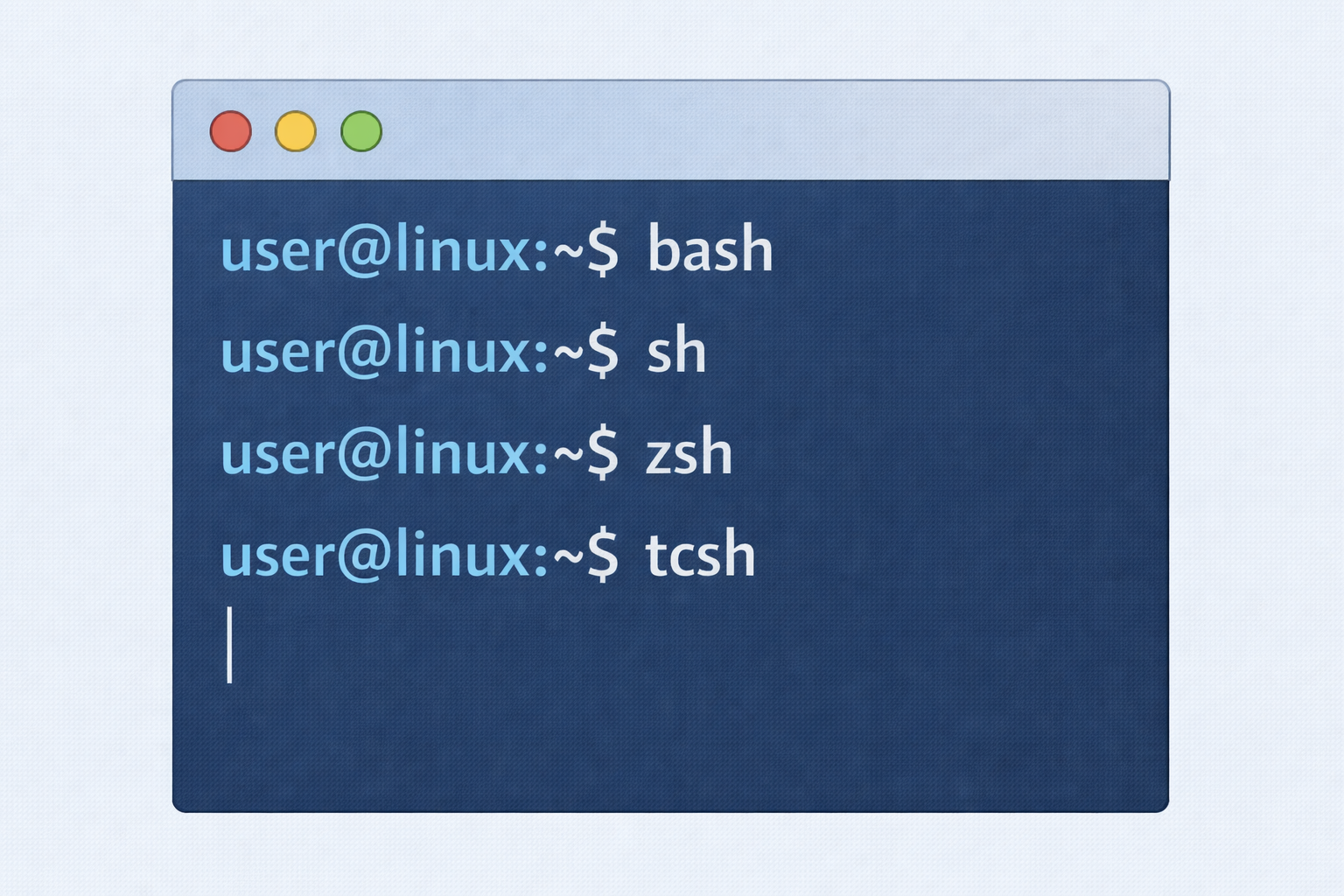
9. Why Do We Use Shell in Linux?
- Faster than GUI
- Powerful scripting support
- Automates tasks
- Required for server administration
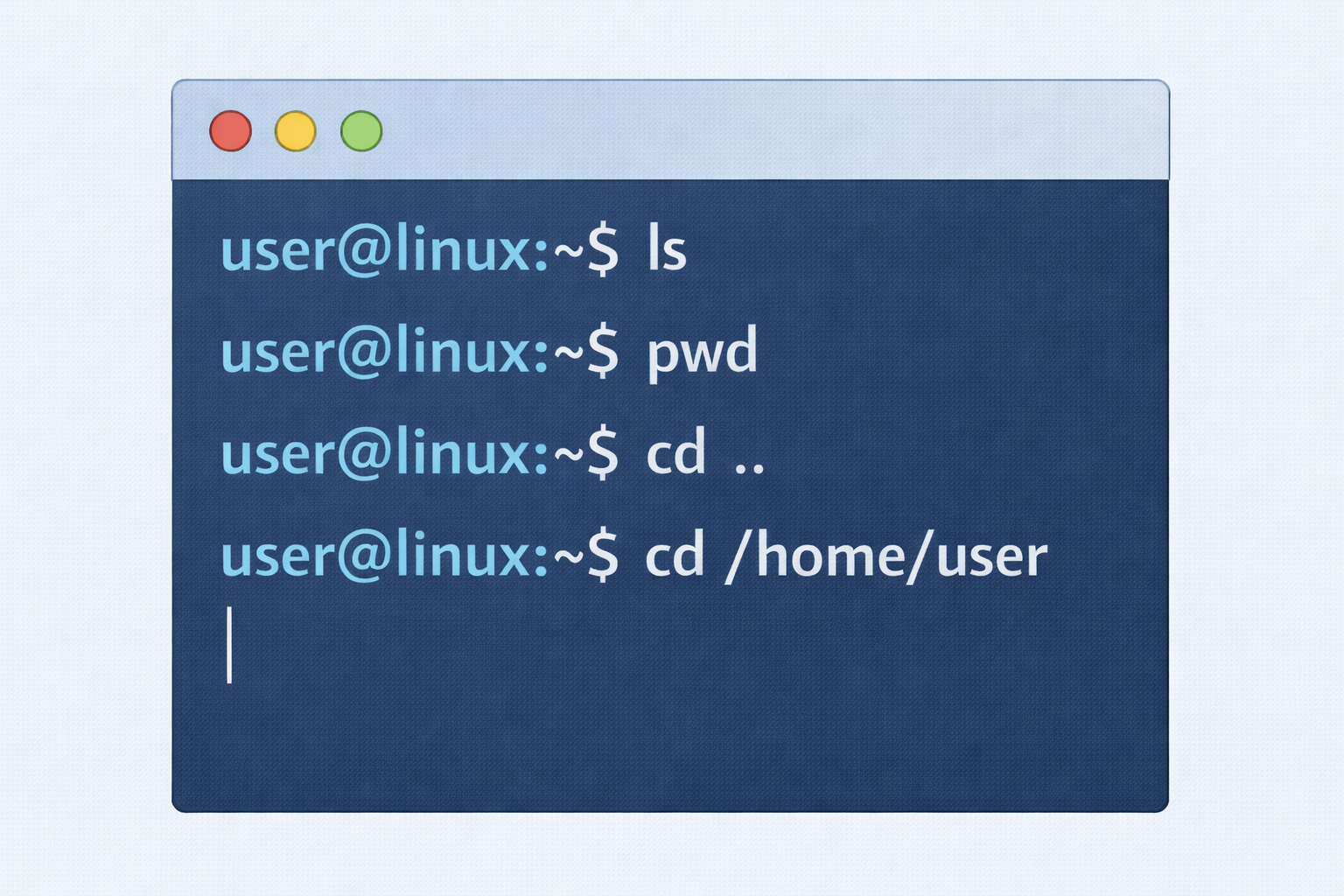
Example
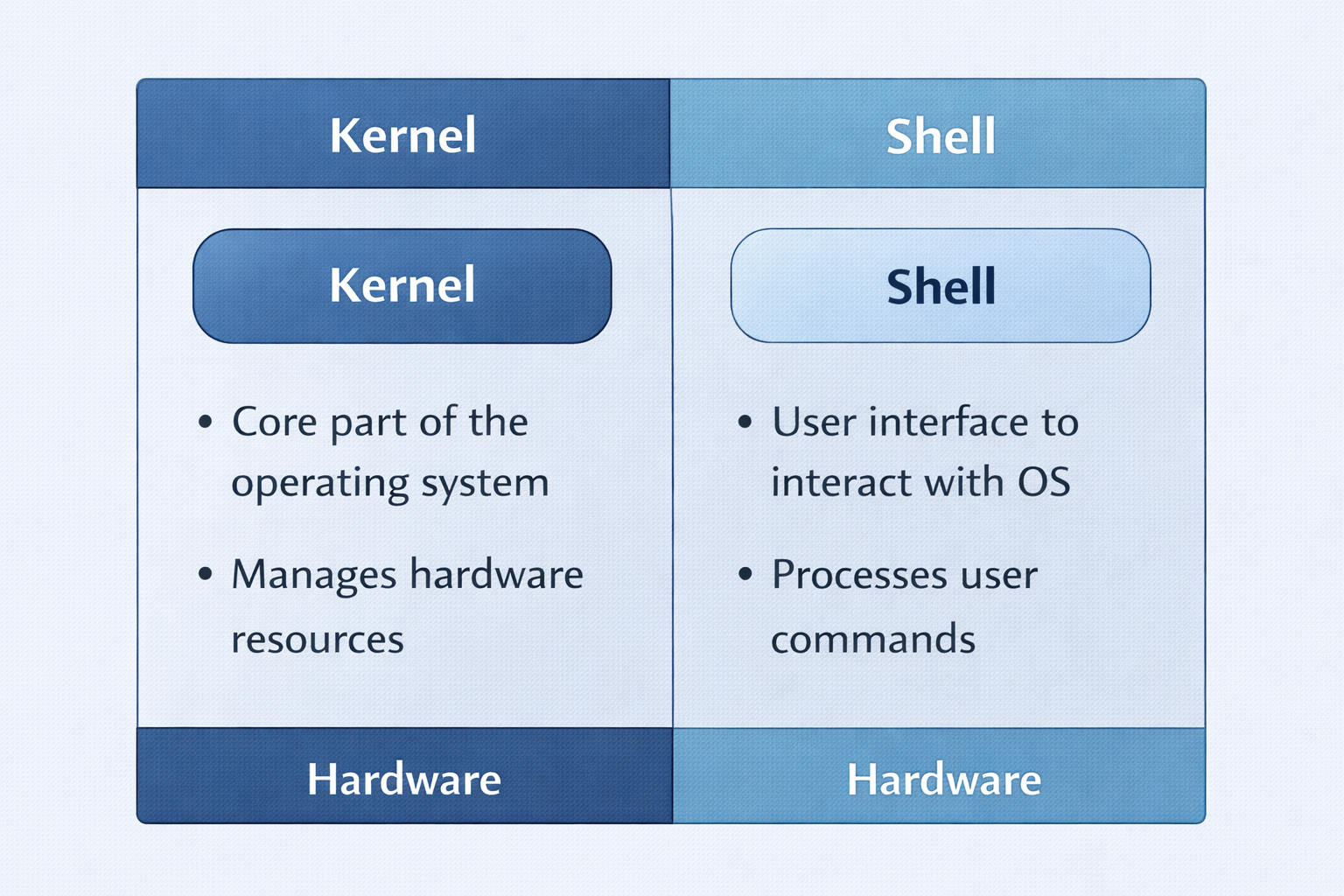
10. Difference Between Kernel and Shell
Kernel | Shell |
Core of OS | Interface to OS |
Manages hardware | Takes user commands |
Runs in background | User interacts with it |
Cannot be replaced easily | Can be changed |
11. Why Linux is Preferred?
- Free and open source
- Secure and stable
- High performance
- Multiuser & multitasking
- Used in real-world industry
12. Summary (For Students)
- OS connects user and hardware
- Linux is a free, open-source OS
- Kernel is the heart of Linux
- Shell is the command interface
- Linux is powerful, secure, and widely used
One-Line Revision
Linux File System & Paths (With Commands Explained Clearly)
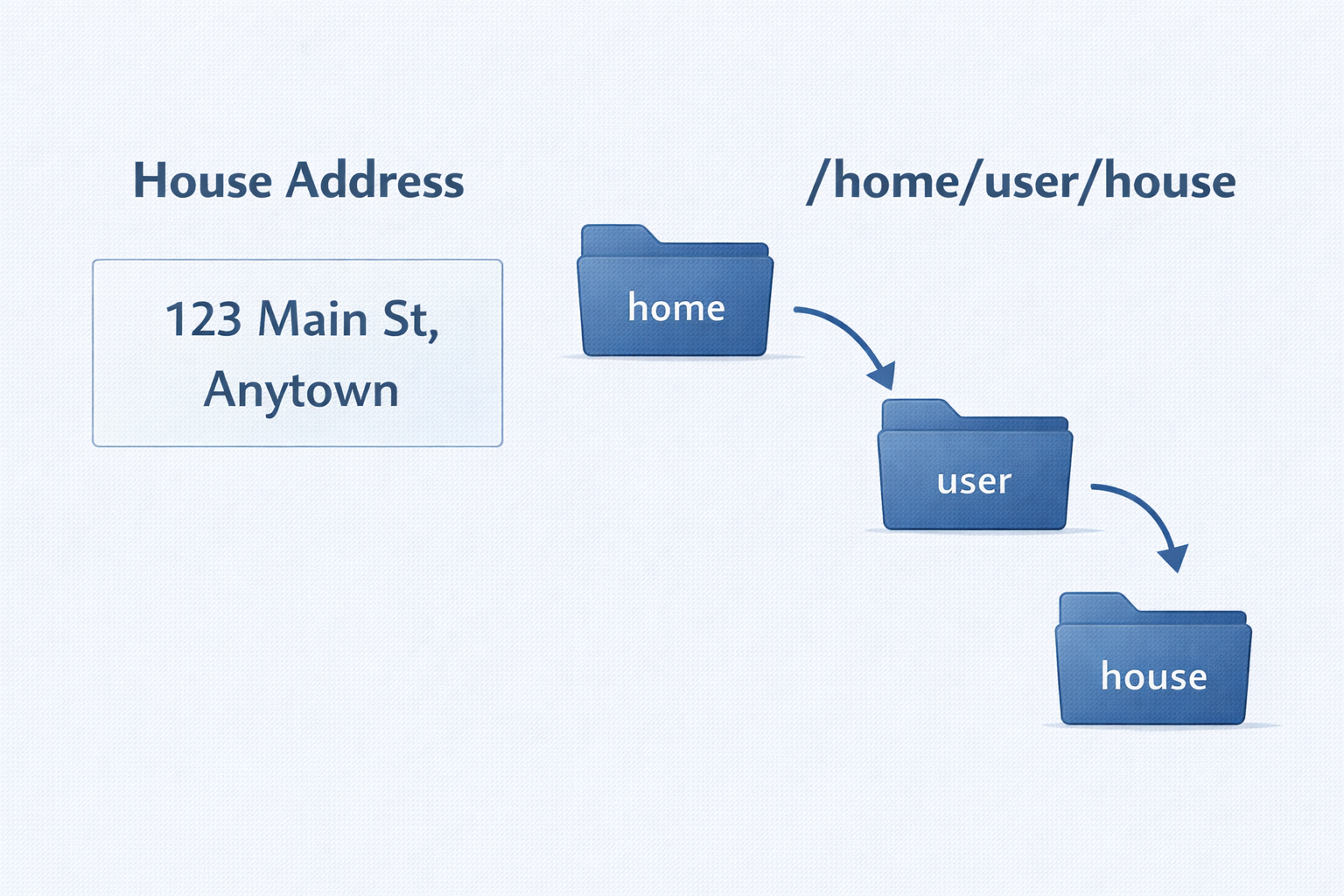
1. What is a Path in Linux?
- House address → helps you reach a house
- Linux path → helps Linux reach a file
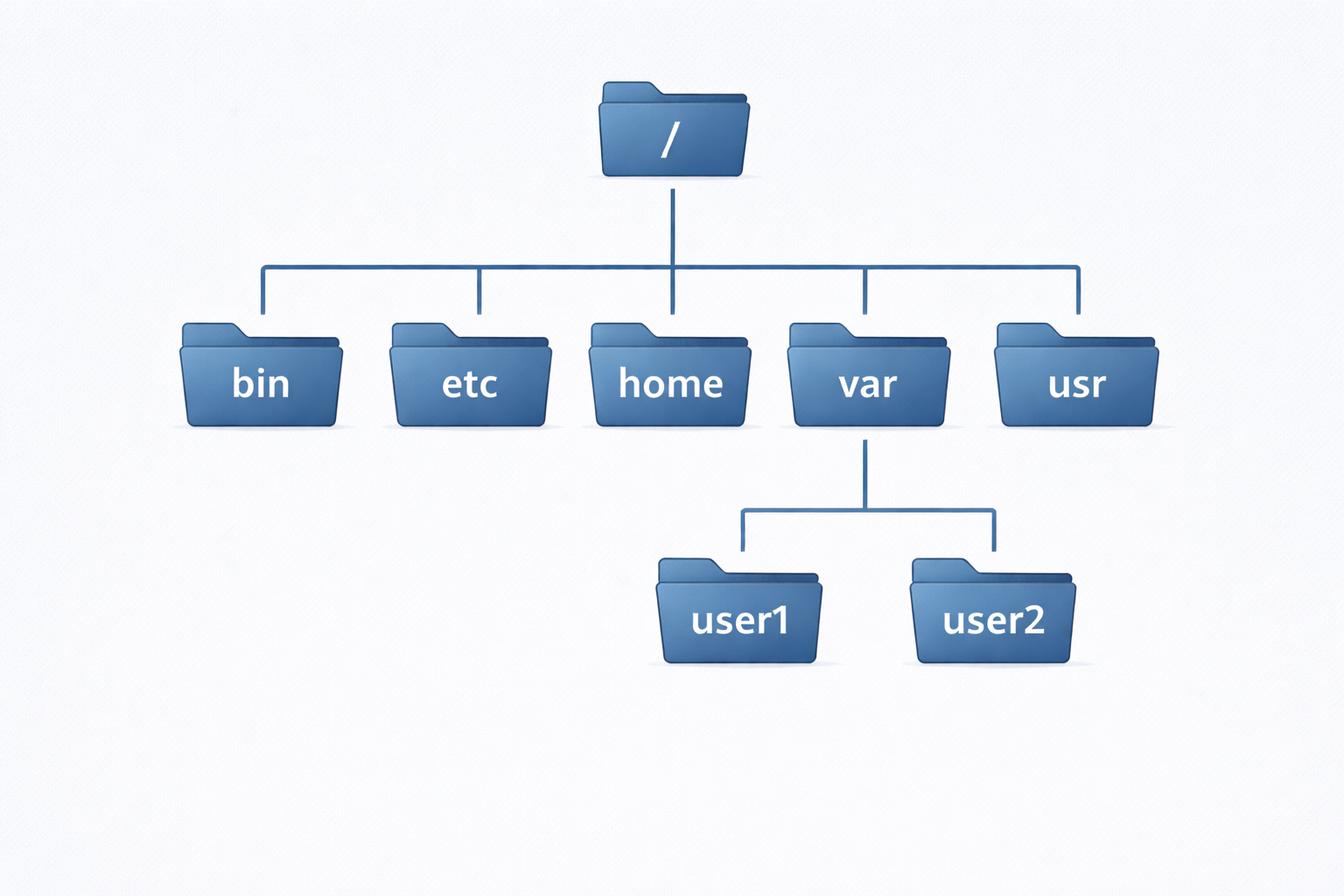
What is Root Directory?
- Root directory is the top-most folder in Linux
- Represented by /
- All files and folders start from here
Real Example
3. Absolute Path (Full Address)
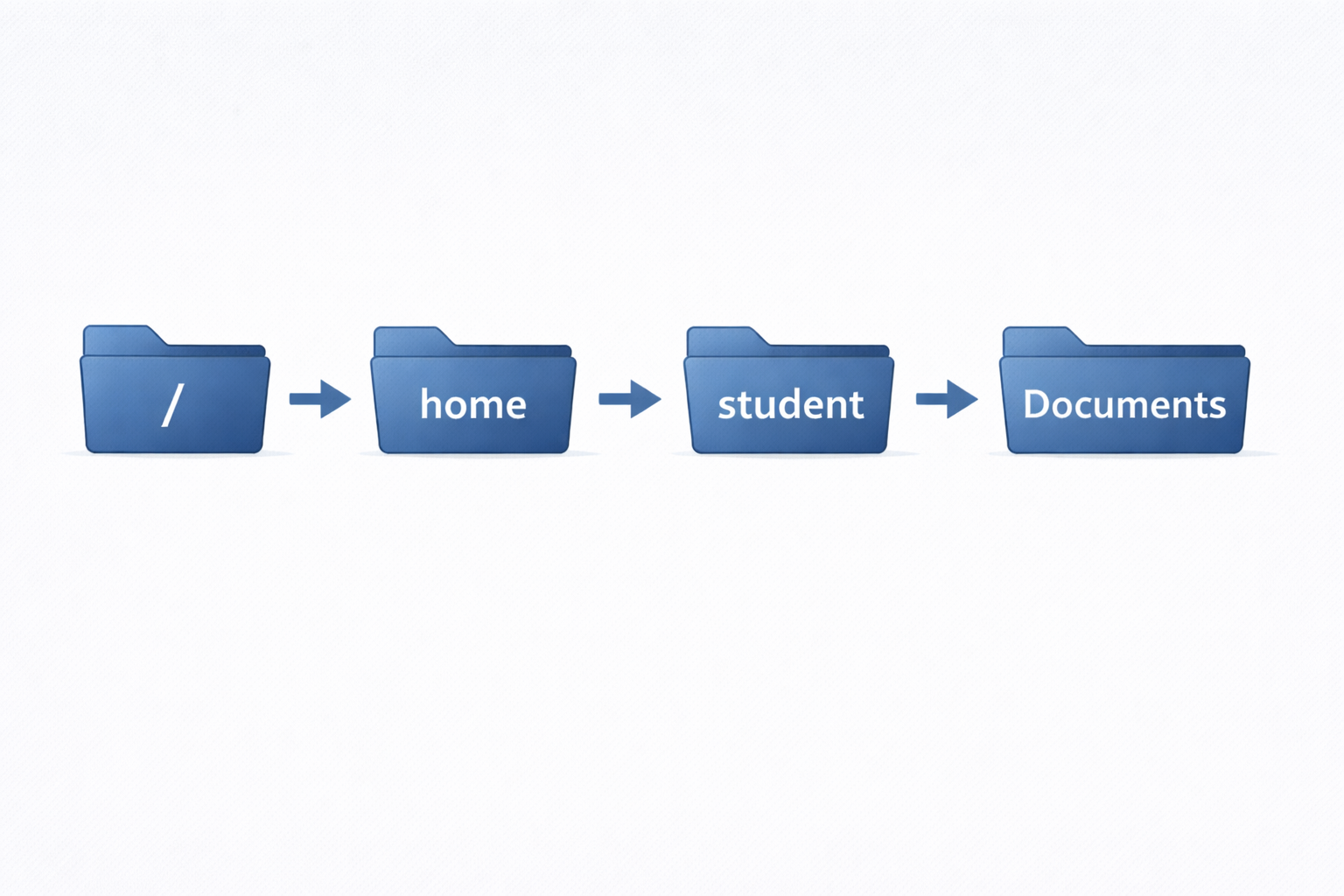
What is Absolute Path?
- Path that starts from root directory (/)
- Gives complete location
- Works from anywhere
Real Example
- Start from /
- Go to home
- Then student
- Then Documents
- Open notes.txt
Command Used – cd (Change Directory)
What cd does
- Moves you from one folder to another
Real Example
4. Relative Path (Nearby Address)
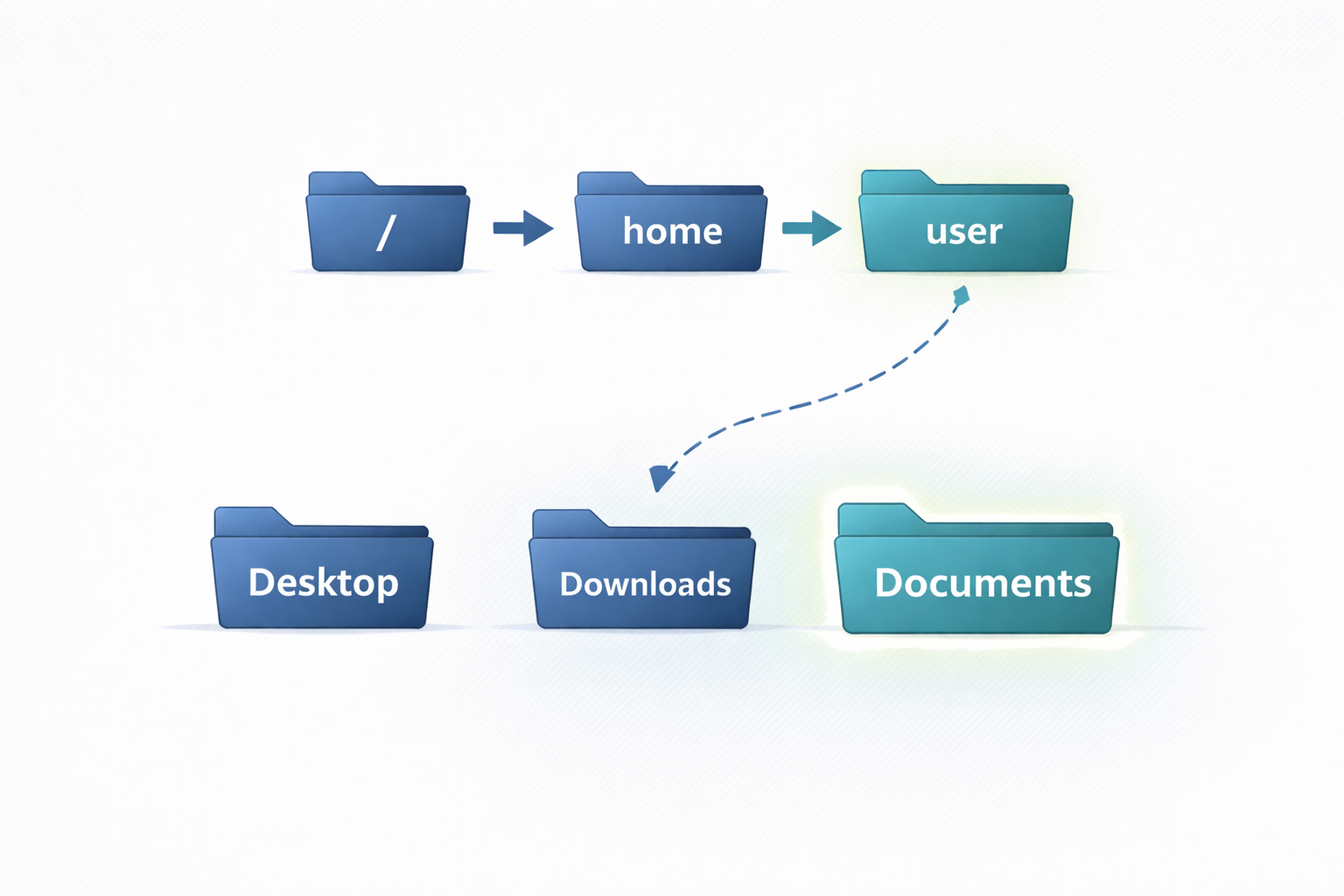
What is Relative Path?
- Path based on current location
- Does not start with /
- Shorter and faster to type
Real Example
Command Example
5. pwd Command (Where Am I?)
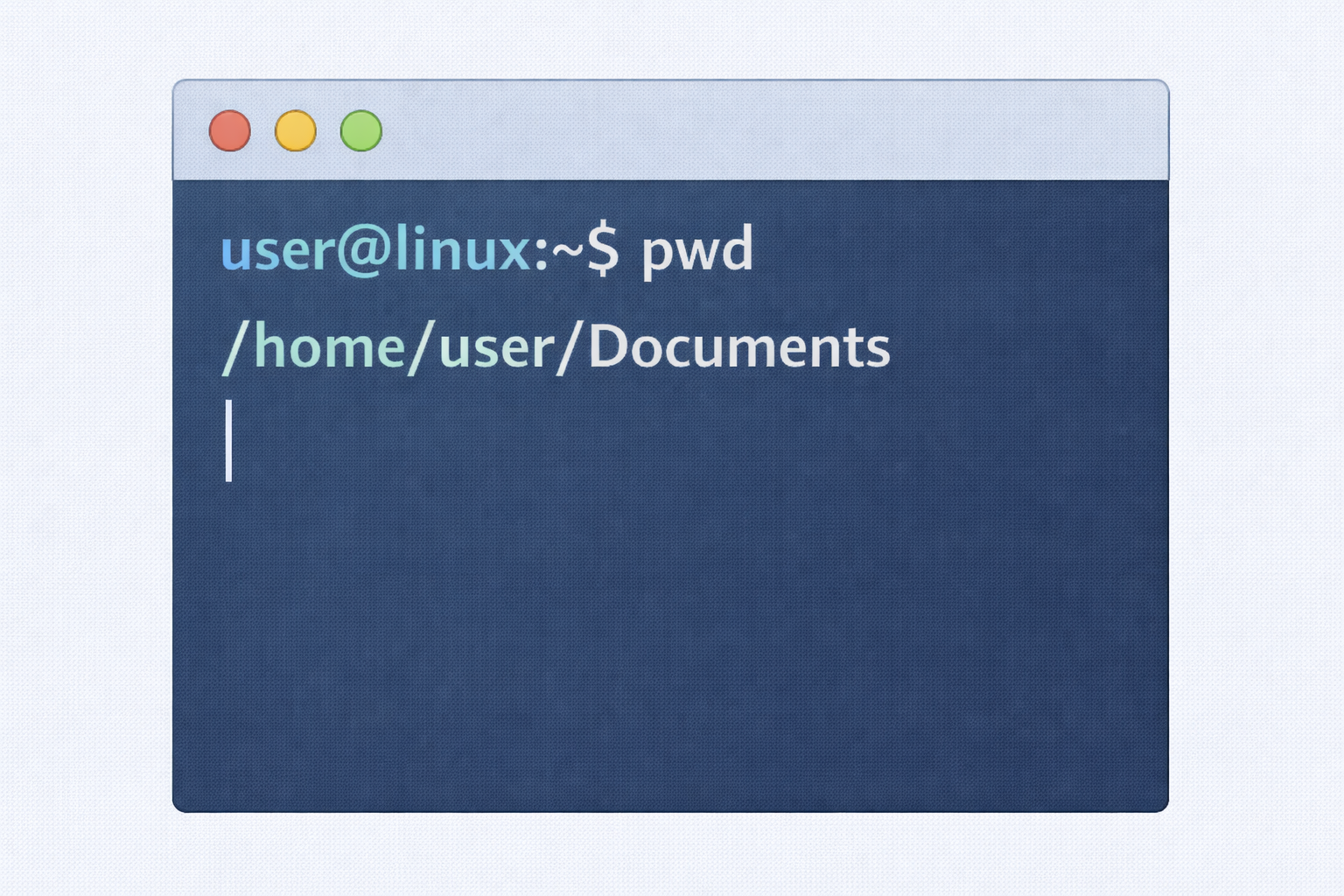
What is pwd?
- pwd means Print Working Directory
- Shows current location
Why we use it
- To avoid confusion
- To know exactly where we are
Example
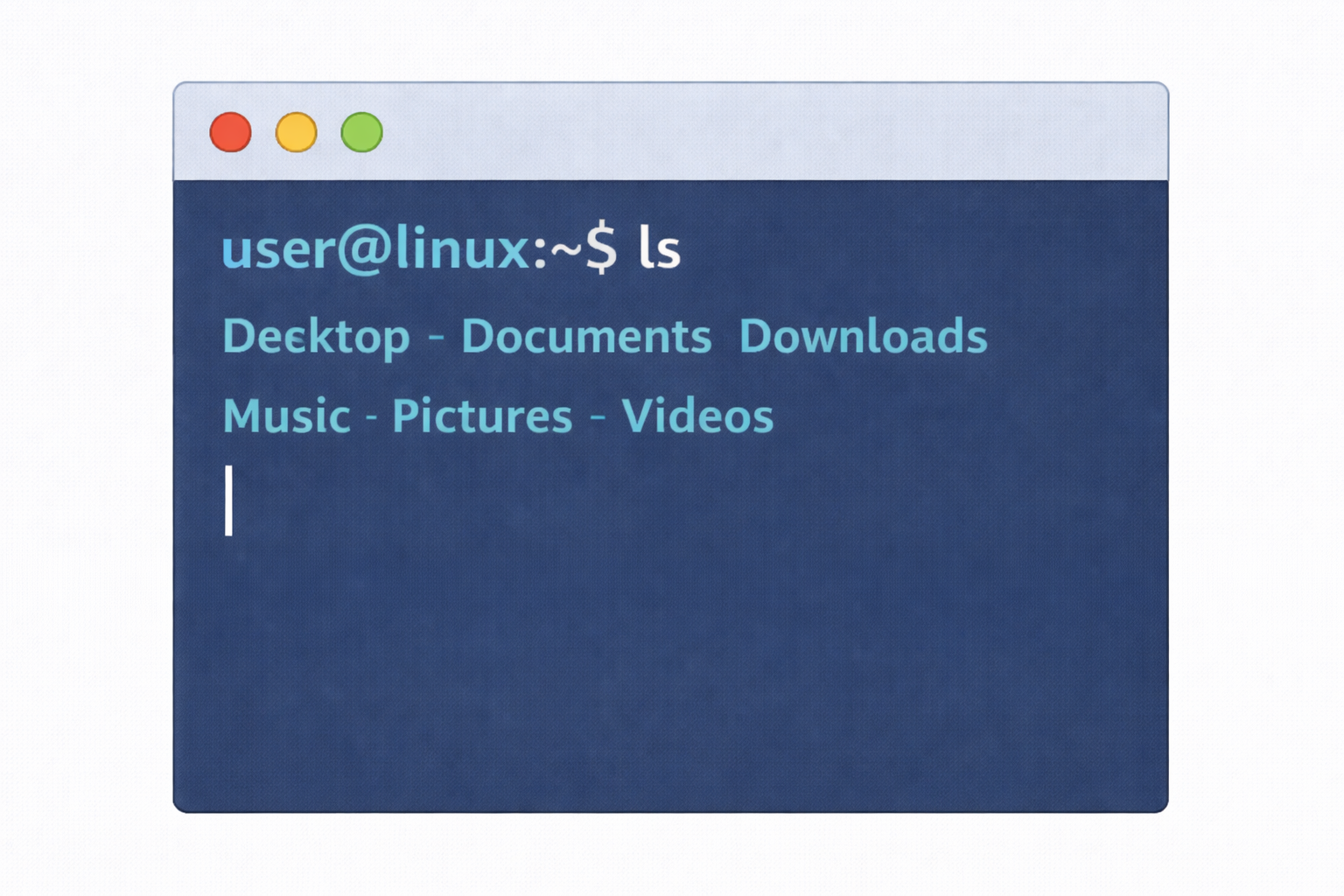
6. ls Command (What is Inside?)
What is ls?
- Lists files and folders in a directory
Real-Life Example
Examples
7. cd Command (Move Between Folders)
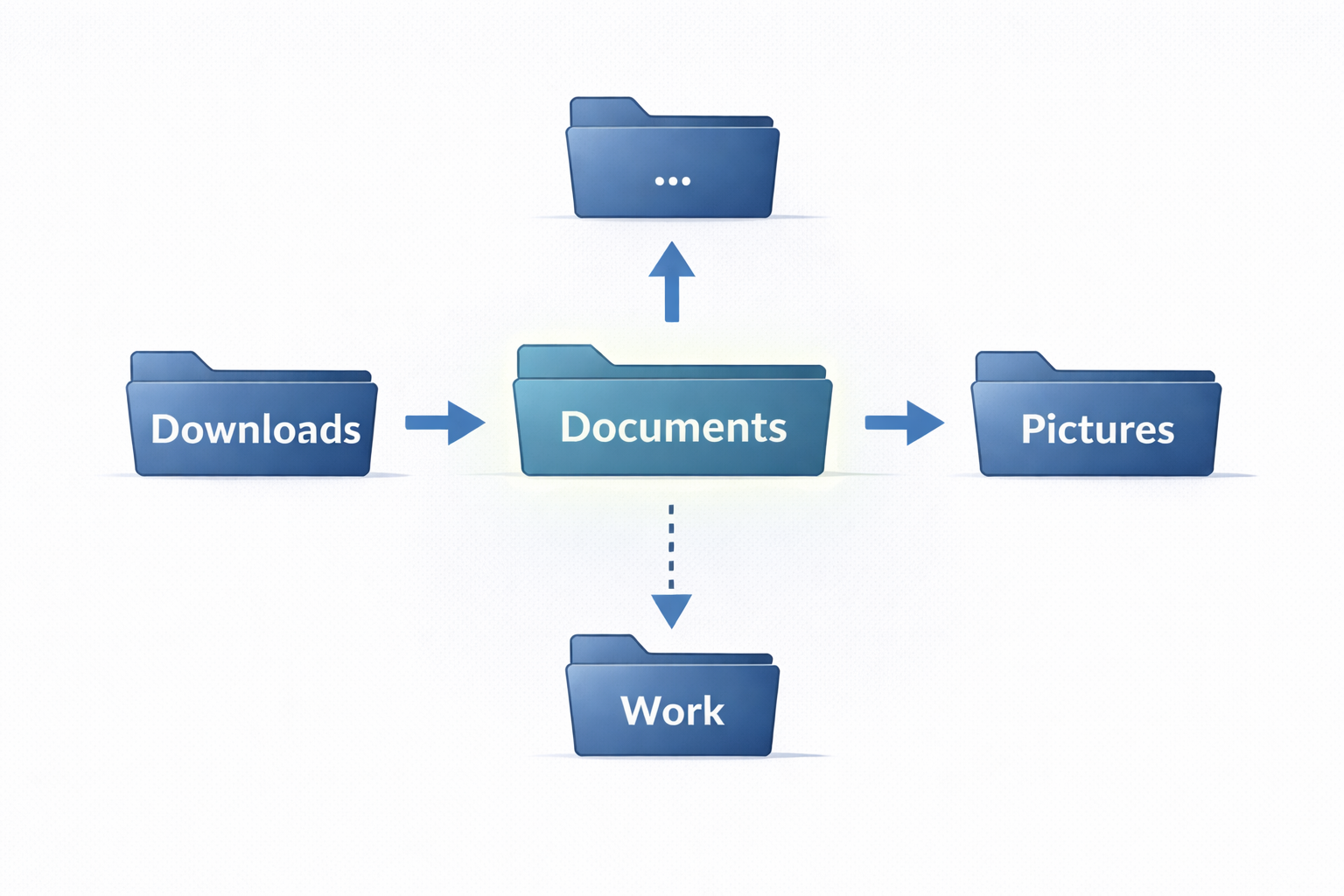
What is cd?
- Changes directory
- Helps move inside folders
Examples
8. mkdir Command (Create Folder)
What is mkdir?
- Creates a new directory
Real Example
9. rmdir Command (Delete Empty Folder)
What is rmdir?
- Deletes empty directories only
Example

10. Special Path Symbols (Very Important)
Symbol | Meaning | Example |
/ | Root directory | /home |
. | Current directory | ./file.txt |
.. | Parent directory | cd .. |
~ | Home directory | cd ~ |

11. Home Directory (~)
What is Home Directory?
- Personal space for each user
- Stores documents, downloads, files
Example

12. Practical Real Example (Lab Style)
Step 1: Check location
Step 2: Create folder
Step 3: Enter folder
Step 4: Verify
13. Student Revision Summary
- pwd → Where am I?
- ls → What is inside?
- cd → Move folders
- mkdir → Create folder
- Absolute path → Full address
- Relative path → Nearby address
Final One-Line Understanding
1. pwd – Present Working Directory
What is pwd?
Example 1
Example 2
Example 3
2. ls – List Directory Contents
What is ls?
Example 1 (Basic)
Example 2 (Detailed view)
- Permissions
- Owner
- Size
- Date
Example 3 (Hidden files)
Example 4 (Human readable size)
3. cd – Change Directory
What is cd?
Example 1
Example 2
Example 3
4. mkdir – Make Directory
What is mkdir?
Example 1
Example 2
Example 3 (Nested directories)
5. rmdir – Remove Empty Directory
What is rmdir?
Example 1
Example 2
Example 3 (Fails if not empty)
6. touch – Create File / Update Time
What is touch?
Example 1
Example 2
Example 3
7. cat – View File Content
What is cat?
Example 1
Example 2
Example 3
8. less – View Large Files
What is less?
Example 1
Example 2
Example 3
9. head – First Lines of File
What is head?
Example 1
Example 2
Example 3
10. tail – Last Lines of File
What is tail?
Example 1
Example 2
Example 3 (Live monitoring)
11. cp – Copy Files & Directories
What is cp?
Example 1
Example 2
Example 3 (Directory copy)
12. mv – Move / Rename
What is mv?
Example 1 (Rename)
Example 2 (Move)
Example 3
13. rm – Remove Files & Directories
Example 1
Example 2
Example 3
14. find – Search Files
What is find?
Example 1
Example 2
Example 3
15. grep – Search Inside Files
What is grep?
Example 1
Example 2
Example 3
16. which – Command Location
What is which?
Example 1
Example 2
Example 3
17. echo – Display Output
What is echo?
Example 1
Example 2
Example 3
FINAL STUDENT UNDERSTANDING FLOW
LINUX EDITORS – DETAILED LECTURE NOTES
1. What is an Editor?
Definition:
- Configuration files
- Program code
- Scripts
- Logs
are text-based, so editors are very important.
Why Editors are Important in Linux?
- Linux is command-line driven
- Almost everything is configured using text files
- Editors allow:
- Editing system files
- Writing shell scripts
- Programming
2. Types of Editors in Linux
A. CLI Editors (Command Line Editors)
- Work inside terminal
- Lightweight
- Very powerful
- vi
- vim
- rvim
- nano
B. GUI Editors (Graphical Editors)
- Mouse-based
- Window interface
- gvim
- gedit
- kate
3. Vi Editor
What is vi?
- Oldest and most basic Linux editor
- Available in almost all Linux systems
- Modal editor (works in modes)
Characteristics:
- Lightweight
- Keyboard-based
- Difficult for beginners
- Foundation for vim & gvim
4. Vim Editor
What is vim?
Advantages over vi:
- Syntax highlighting
- Undo/Redo
- Plugins support
- Better search
Command:
5. rvim Editor
What is rvim?
Purpose:
- Used for security
- Restricts:
- Shell commands
- File system access
Usage:
6. GVIM Editor (MAIN FOCUS)
What is GVIM?
Features:
- GUI-based vim
- Mouse support
- Menus & toolbar
- Same power as vim + graphical interface
Why GVIM is Best for Learning?
Command to Open GVIM:
7. GVIM MODES (VERY IMPORTANT)
Total Main Modes:
8. Normal Mode (Default Mode)
What is Normal Mode?
- Default mode when GVIM opens
- Used for:
- Navigation
- Copy, delete
- Editing commands
Important Normal Mode Commands (Systematic Order)
A. Cursor Movement
Command | Action |
h | Move left |
l | Move right |
j | Move down |
k | Move up |
B. Word Movement
Command | Action |
w | Next word |
b | Previous word |
e | End of word |
C. Line Movement
Command | Action |
0 | Start of line |
$ | End of line |
gg | First line |
G | Last line |
D. Delete Commands
Command | Action |
x | Delete character |
dd | Delete line |
dw | Delete word |
d$ | Delete till end |
Example
- Cursor on "is"
- Press dw → deletes "is"
9. Insert Mode
What is Insert Mode?
- Used to type text
- Similar to Notepad typing
Enter Insert Mode
Command | Action |
i | Insert before cursor |
I | Insert at line start |
a | Insert after cursor |
A | Insert at line end |
o | New line below |
O | New line above |
Exit Insert Mode
Example:
- Press i
- Type: Linux Editor
- Press ESC
10. Visual Mode
What is Visual Mode?
- Used to select text
- Similar to mouse selection
Enter Visual Mode
Command | Action |
v | Character selection |
V | Line selection |
Ctrl + v | Block selection |
Visual Mode Operations
Command | Action |
y | Copy |
d | Delete |
> | Indent right |
< | Indent left |
Example:
- Press V
- Select lines
- Press y → copied
11. Command-Line Mode
What is Command Mode?
- Used to:
- Save file
- Quit
- Search
- Replace
Enter Command Mode
File Commands
Command | Meaning |
:w | Save |
:q | Quit |
:wq | Save & Quit |
:q! | Force quit |
:w! | Force save |
Search Commands
Command | Meaning |
/word | Search forward |
?word | Search backward |
n | Next match |
N | Previous match |
Replace Command
Example:
12. Replace Mode
What is Replace Mode?
- Replaces text instead of inserting
Enter Replace Mode
Example:
- Press R
- Type new text
- Existing text is overwritten
13. GVIM WORKFLOW (REAL LIFE)
14. Why GVIM is Used in Industry?
15. STUDENT SUMMARY (ONE GLANCE)
Mode | Purpose |
Normal | Navigation & commands |
Insert | Typing text |
Visual | Select text |
Command | Save, search |
Replace | Overwrite |
GVIM EDITOR – COMPLETE COMMANDS (DETAILED LECTURE NOTES)
1. GVIM MODES (REVISION)
Mode | Purpose |
Normal Mode | Navigation, delete, copy |
Insert Mode | Typing text |
Visual Mode | Selection |
Command Mode | Save, search, replace |
Replace Mode | Overwrite text |
2. NORMAL MODE COMMANDS (MOST IMPORTANT)
2.1 Cursor Movement Commands
Command | Meaning |
h | Move left |
l | Move right |
j | Move down |
k | Move up |
Examples:
- Press j → moves to World
- Press k → back to Linux
2.2 Word Navigation Commands
Command | Meaning |
w | Next word |
b | Previous word |
e | End of word |
Example:
- Cursor on Linux
- w → moves to is
- e → moves to x
2.3 Line Navigation Commands
Command | Meaning |
0 | Start of line |
^ | First non-space character |
$ | End of line |
Example:
- 0 → start (spaces)
- ^ → L
- $ → end
2.4 File Navigation Commands
Command | Meaning |
gg | First line |
G | Last line |
10G | Go to line 10 |
Ctrl + g | Show line number |
3. INSERT MODE COMMANDS
Enter Insert Mode
Command | Action |
i | Insert before cursor |
a | Insert after cursor |
I | Insert at start |
A | Insert at end |
o | New line below |
O | New line above |
Examples:
- Cursor on L
- a → type OS
Result:
4. DELETE COMMANDS (NORMAL MODE)
Command | Meaning |
x | Delete character |
dw | Delete word |
dd | Delete line |
D | Delete till end |
dG | Delete till end of file |
Examples:
- Cursor on is
- dw → deletes is
- Cursor on Line2
- dd → deletes Line2
5. COPY (YANK) COMMANDS
Command | Meaning |
yy | Copy line |
yw | Copy word |
y$ | Copy till end |
yG | Copy till end file |
Example:
- Cursor on Linux
- yw
- Move cursor → p
- Word pasted
6. PASTE COMMANDS
Command | Meaning |
p | Paste after cursor |
P | Paste before cursor |
7. UNDO / REDO
Command | Meaning |
u | Undo |
Ctrl + r | Redo |
Example:
- Delete a line
- Press u → restored
8. VISUAL MODE COMMANDS
Enter Visual Mode
Command | Mode |
v | Character |
V | Line |
Ctrl + v | Block |
Visual Mode Operations
Command | Meaning |
y | Copy |
d | Delete |
> | Indent |
< | Outdent |
Example:
- Press V
- Select 3 lines
- > → indented
9. SEARCH COMMANDS
Command | Meaning |
/word | Search forward |
?word | Search backward |
n | Next |
N | Previous |
Example:
- /Linux
- n → next Linux
10. COMMAND MODE COMMANDS
Enter Command Mode
File Commands
Command | Action |
:w | Save |
:q | Quit |
:wq | Save & quit |
:q! | Force quit |
:w! | Force save |
Example:
11. REPLACE COMMANDS
Single Replace
Command | Meaning |
r | Replace one character |
Global Replace
Examples:
12. MULTI-FILE COMMANDS
Command | Meaning |
:e file | Open file |
:n | Next file |
:prev | Previous |
:ls | List files |
:bd | Close file |
13. WINDOW / SPLIT COMMANDS
Command | Meaning |
:split | Horizontal split |
:vsplit | Vertical split |
Ctrl+w w | Switch window |
Ctrl+w q | Close split |
14. SETTINGS COMMANDS
Command | Meaning |
:set nu | Show line numbers |
:set nonu | Hide numbers |
:set ic | Ignore case |
:syntax on | Syntax highlight |
15. HELP COMMAND
Command | Meaning |
:help | Open help |
:help dd | Help on dd |
16. REAL-TIME GVIM USAGE EXAMPLE
Editing Config File:
- /root
- dd
- :wq
17. COMPLETE STUDENT SUMMARY
LINUX WILDCARD CHARACTERS (PATTERN MATCHING)
(Complete Beginner-to-Advanced Notes)
1. What is a Wildcard Character?
Example:
2. Why Do We Use Wildcards?
3. Types of Wildcard Characters
Wildcard | Name |
* | Asterisk |
? | Question mark |
[ ] | Bracket expression |
{ } | Brace expansion |
! | Negation (inside brackets) |
4. Asterisk Wildcard (*)
4.1 Meaning
4.2 Examples
Example 1: List all files
Example 2: Files starting with name
Example 3: Files ending with extension
Example 4: Copy multiple files
Example 5: Remove files
5. Question Mark (?) Wildcard
5.1 Meaning
5.2 Examples
Example 1:
Example 2:
Example 3:
Difference Between * and ?
* | ? |
Zero or more chars | Exactly one char |
file* → file, file1 | file? → file1 |
6. Bracket Wildcard [ ]
6.1 Meaning
6.2 Examples
Example 1: Specific characters
Example 2: Character range
Example 3: Numbers range
6.3 Bracket with Negation [! ]
Meaning:
Example:
7. Brace Expansion { }
7.1 Meaning
7.2 Examples
Example 1:
Example 2:
Example 3:
8. Combining Wildcards (Advanced Usage)
Example 1:
Example 2:
9. Real-Time Use Cases
Find log files:
Backup files:
Delete temp files:
10. Important Notes for Students
11. Student Quick Summary Table
Wildcard | Use |
* | Any length |
? | One character |
[ ] | One from set |
[! ] | Not from set |
{ } | Multiple names |
LINUX FILE & DIRECTORY PERMISSIONS
(Complete Beginner → Practical Level Notes)
1. Why Permissions Are Needed in Linux
- Data security
- Controlled access
- Protection from accidental deletion
- Proper system management
2. Types of Users in Linux
Category | Meaning |
User (u) | Owner of the file |
Group (g) | Group of users |
Others (o) | Everyone else |
3. Understanding ls -l Output
Field | Meaning |
- | File type |
rwx | User permissions |
r-x | Group permissions |
r-- | Others permissions |
khalil | Owner |
dev | Group |
4. File Types
Symbol | Meaning |
- | Regular file |
d | Directory |
l | Link |
5. Permission Types
Permission | Symbol | File Meaning | Directory Meaning |
Read | r | View file content | List files |
Write | w | Modify file | Create/Delete files |
Execute | x | Run file | Enter directory |
6. Permission Structure (9 Bits)
- First 3 → User
- Next 3 → Group
- Last 3 → Others
7. Permissions on Files vs Directories
File
Permission | Effect |
r | Can read file |
w | Can modify |
x | Can execute |
Directory
Permission | Effect |
r | Can list files |
w | Can create/delete |
x | Can enter (cd) |
8. Symbolic Mode of chmod
Syntax:
9. Symbol Meaning
Symbol | Meaning |
+ | Add permission |
- | Remove permission |
= | Assign exact permission |
10. Examples – Symbolic Mode
Add execute permission to user:
Remove write permission from group:
Give read-only to others:
Give full permission to user:
Give permissions to all:
11. Octal (Numeric) Permission System
Numeric Values:
Permission | Value |
r | 4 |
w | 2 |
x | 1 |
Permission Calculation
Permission | Value |
rwx | 7 |
rw- | 6 |
r-- | 4 |
r-x | 5 |
--- | 0 |
12. Common Octal Examples
755
644
777 (Dangerous )
13. Directory Permission Examples
Allow everyone to enter directory:
Private directory:
14. Recursive Permission Change
- Folder
- All subfolders
- All files
15. chown – Change Owner
Syntax:
Example:
Change owner & group:
Recursive ownership:
16. chgrp – Change Group
Syntax:
Example:
Recursive:
17. Real-World Scenario Example
Create secure project folder:
- Owner → Full access
- Group → Read + Execute
- Others → No access
18. Common Mistakes Students Make
19. Quick Revision Table
Command | Purpose |
chmod | Change permissions |
chown | Change owner |
chgrp | Change group |
ls -l | View permissions |
20. Student Final Summary
- Linux permissions protect files
- Three levels: User, Group, Others
- Two methods: Symbolic & Octal
- Directories behave differently
- chown & chgrp control ownership
LINUX REDIRECTION OPERATORS
(Input & Output Redirection – Complete Beginner Guide)
1. What is Redirection in Linux?
- Input → Keyboard
- Output → Screen (Terminal)
- Files
- Other commands
2. Standard Streams in Linux
Stream | Name | Number | Default |
Standard Input | stdin | 0 | Keyboard |
Standard Output | stdout | 1 | Screen |
Standard Error | stderr | 2 | Screen |
3. Types of Redirection
4. Output Redirection Operator >
Meaning:
Syntax:
Example 1:
Example 2:
Example 3:
Important Point:
5. Append Output Redirection >>
Meaning:
Syntax:
Example 1:
Example 2:
Example 3:
Difference: > vs >>
Operator | Behavior |
> | Overwrite |
>> | Append |
6. Input Redirection Operator <
Meaning:
Syntax:
Example 1:
Example 2:
Example 3:
7. Here Document Operator <<
Meaning:
Syntax:
Example 1:
Example 2:
Example 3:
8. Real-World Use Case
Create file without editor:
9. Error Redirection (Bonus – Important)
Redirect errors only:
Example:
Redirect both output & error:
10. Combined Redirection
Example:
11. Redirection Summary Table
Operator | Purpose |
> | Output overwrite |
>> | Output append |
< | Input from file |
<< | Multi-line input |
2> | Error output |
12. Common Student Mistakes
13. Simple Student Practice Tasks
14. Final Student Understanding
HELPFUL COMMANDS IN LINUX (LECTURE STYLE)
1. Why Helpful Commands Are Important
- Thousands of commands exist
- No one can memorize all options
- Linux provides built-in documentation
2. man Command (Manual Pages)
What is man?
- Command description
- Syntax
- Options
- Examples
Syntax
Example 1
- NAME
- SYNOPSIS
- DESCRIPTION
- OPTIONS
Output Structure
Navigation in man Page
Key | Action |
Enter | Next line |
Space | Next page |
b | Previous page |
/word | Search |
n | Next match |
q | Quit |
Example 2: Search inside man
Example 3: Specific Section
Man Sections
Section | Meaning |
1 | User commands |
2 | System calls |
3 | Library calls |
4 | Devices |
5 | File formats |
8 | Admin commands |
3. help Command (Shell Built-ins)
What is help?
- Shows help for shell built-in commands
- Faster than man
Syntax
Example 1
Example 2
Difference: man vs help
man | help |
External commands | Shell built-ins |
Detailed | Short explanation |
Uses pager | Instant output |
4. info Command
What is info?
- GNU documentation system
- More structured than man
Syntax
Example
Navigation Keys
Key | Action |
n | Next |
p | Previous |
u | Up |
q | Quit |
Comparison
man | info |
Short & quick | Detailed & structured |
5. whatis Command
What is whatis?
- One-line description of command
Syntax
Example 1
Example 2
When to Use
6. apropos Command
What is apropos?
- Searches man page descriptions
- Finds commands by keyword
Syntax
Example 1
Example 2
7. type Command
What is type?
- Command type
- Built-in / external / alias
Syntax
Example 1
Example 2
8. which Command
What is which?
- Shows full path of command
- Uses PATH variable
Syntax
Example
9. whereis Command
What is whereis?
- Finds binary, source, man pages
Syntax
Example
10. --help Option
What is --help?
Syntax
Example 1
Example 2
- Syntax
- Options
- Usage
11. Comparison Table (Quick Revision)
Command | Purpose |
man | Full documentation |
help | Shell built-ins |
info | GNU docs |
whatis | One-line info |
apropos | Search commands |
type | Command type |
which | Command path |
whereis | Binary + man |
--help | Quick help |
12. Real Student Workflow
14. Student Summary
(more, less, grep, pipe, sed – COMPLETE GUIDE)
1. more Command
What is more?
Syntax
Example 1
Example 2
Example 3
Important Keys in more
Key | Action |
Space | Next page |
Enter | Next line |
q | Quit |
Limitations of more
2. less Command
What is less?
Syntax
Example 1
Example 2
Example 3
Useful Keys in less
Key | Action |
Space | Next page |
b | Previous page |
/word | Search |
n | Next match |
q | Quit |
Why less is better
3. grep Command
What is grep?
Syntax
Example 1
Example 2
Example 3
Common grep Options
-i (Ignore case)
-n (Line number)
-v (Invert match)
-r (Recursive)
-w (Exact word)
-c (Count matches)
4. Pipe Operator |
What is Pipe?
Syntax
Example 1
Example 2
Example 3
Multiple Pipes
Why Pipes are powerful
5. sed Command (Stream Editor)
What is sed?
Syntax
5.1 Replace Text
Example 1
Replace all occurrences
Case insensitive
5.2 Delete Lines
Delete specific line
Delete range
Delete matching pattern
5.3 Print Specific Lines
5.4 Save Output to File
5.5 Edit File Permanently (-i)
6. Combined Usage (Real-World Examples)
Example 1
Example 2
Example 3
7. Command Comparison
Command | Purpose |
more | Simple paging |
less | Advanced paging |
grep | Search text |
pipe ` | ` |
sed | Edit text |
8. Student Practice Tasks
9. Interview Important Notes
AWK COMMAND – COMPLETE LECTURE WITH OUTPUTS
1. What is AWK (Simple Explanation)
- Read a file line by line
- Split each line into columns (fields)
- Perform filtering, calculations, formatting
2. Sample File Used for All Examples
3. Basic AWK Syntax
Example 1: Print entire file
Output
4. $0 – Print Complete Line
Command
Output
5. $1, $2, $3 – Fields (Columns)
Variable | Meaning |
$1 | First column |
$2 | Second column |
$3 | Third column |
Example 1: Print Names only
Output
Example 2: Print ID and Marks
Output
6. NR – Line Number
Command
Output
Example: Print only 3rd line
Output
7. NF – Number of Fields
Command
Output
8. FS – Field Separator
Example File: users.txt
Command
Output
9. OFS – Output Field Separator
Command
Output
10. BEGIN Block (Pre-Processing)
Command
Output
11. END Block (Post-Processing)
Command
Output
12. Calculate Average
Command
Output
13. Conditional Statements
Example: Marks > 80
Output
14. Pattern Matching
Example: Find name "Sita"
Output
15. Multiple Conditions
Command
Output
16. FILENAME
Command
Output
17. AWK with Pipe
Example
Output
18. Full AWK Program (BEGIN + BODY + END)
Output
19. Real-Time Use Case (Log Analysis)
log.txt
Command
Output
20. Student Practice (Important)
AWK OPERATORS – COMPLETE LECTURE WITH OUTPUTS
- Arithmetic Operators
- Increment & Decrement Operators
- Assignment Operators
- Relational Operators
- Logical Operators
- Ternary Operator
- Exponential Operator
Common Sample File (marks.txt)
1. Arithmetic Operators in AWK
Operator | Meaning |
+ | Addition |
- | Subtraction |
* | Multiplication |
/ | Division |
% | Modulus |
Example 1: Add 5 marks to everyone
Output
Example 2: Multiply marks by 2
Output
Example 3: Average marks
Output
Example 4: Modulus (Even / Odd marks)
Output
2. Increment & Decrement Operators
Operator | Meaning |
++ | Increment by 1 |
-- | Decrement by 1 |
Example 1: Increase marks by 1
Output
Example 2: Decrease marks by 1
Output
Example 3: Line Counter using Increment
Output
3. Assignment Operators
Operator | Meaning |
= | Assign |
+= | Add and assign |
-= | Subtract and assign |
*= | Multiply and assign |
/= | Divide and assign |
Example 1: Add all marks
Output
Example 2: Reduce marks by 10
Output
Example 3: Double sum
Output
4. Relational Operators
Operator | Meaning |
> | Greater than |
< | Less than |
>= | Greater than or equal |
<= | Less than or equal |
== | Equal |
!= | Not equal |
Example 1: Marks greater than 80
Output
Example 2: Marks equal to 90
Output
Example 3: Marks not equal to 78
Output
5. Logical Operators
Operator | Meaning |
&& | AND |
! | NOT |
Example 1: Marks >80 AND name not Ravi
Output
Example 2: Marks <80 OR name Kumar
Output
Example 3: NOT operator
Output
6. Ternary Operator
Syntax
Example 1: Pass / Fail
Output
Example 2: Grade system
Output
7. Exponential Operator (^ or **)
Example 1: Square of marks
Output
Example 2: Cube of marks
Output
8. Combined Operator Example (Real Life)
Command
Output
9. Key Points for Students
DECISION MAKING STATEMENTS IN AWK
- if
- if–else
- if–else if–else
- Conditional expressions using relational & logical operators
- Ternary operator (short decision)
Sample Input File (student.txt)
1. IF Statement in AWK
Syntax
Example 1: Print students who passed (Marks ≥ 80)
Output
Example 2: Print students who failed (Marks < 80)
Output
Example 3: Skip header using IF
Output
2. IF–ELSE Statement
Syntax
Example 1: Pass / Fail
Output
Example 2: Scholarship Eligibility
Output
Example 3: Check Even or Odd Marks
Output
3. IF – ELSE IF – ELSE Statement
Syntax
Example 1: Grade System
Output
Example 2: Result Category
Output
4. Decision Making Using Logical Operators
Example 1: Marks >80 AND <90
Output
Example 2: Marks <70 OR >90
Output
Example 3: NOT Operator
Output
5. Nested IF (IF inside IF)
Example: Scholarship + Hostel Eligibility
Output
6. Ternary Operator (Short Decision Making)
Syntax
Example 1: Pass / Fail (Short Form)
Output
Example 2: Grade Using Ternary
Output
7. Decision Making in BEGIN and END Blocks
Example: Check file size
Output
8. Real-Time Example (Total Pass Count)
Output
KEY NOTES FOR STUDENTS
AWK LOOPS & LOOP CONTROL STATEMENTS
- while loop
- do–while loop
- for loop
- Loop control statements
- break
- continue
- exit
- next
Sample Input File (marks.txt)
1. WHILE LOOP
Syntax
Example 1: Print numbers from 1 to 5
Output
Example 2: Print table of 2
Output
Example 3: Sum of numbers 1 to 10
Output
2. DO–WHILE LOOP
Syntax
Example 1: Print 1 to 5
Output
Example 2: Condition False but Runs Once
Output
Example 3: Factorial using do–while
Output
3. FOR LOOP
Syntax
Example 1: Print numbers 1 to 10
Output
Example 2: Sum of even numbers
Output
Example 3: Print file using for loop
Output
Example 4: Print only names
Output
4. FOR LOOP WITH ARRAYS
Example: Count Pass/Fail
Output
5. LOOP CONTROL STATEMENTS
5.1 BREAK STATEMENT
Example 1: Stop at 5
Output
Example 2: Stop after first fail
Output
5.2 CONTINUE STATEMENT
Example 1: Skip number 5
Output
Example 2: Skip failed students
Output
5.3 NEXT STATEMENT
Example 1: Skip header
Output
Example 2: Skip failed students
Output
5.4 EXIT STATEMENT
Example 1: Stop after 3 lines
Output
Example 2: Exit when marks < 70
Output
6. REAL-TIME COMBINED EXAMPLE
Top 3 students
Output
IMPORTANT DIFFERENCES
Statement | Purpose |
break | Exit loop only |
continue | Skip iteration |
next | Skip record |
exit | Stop program |
🎯 STUDENT TAKEAWAY
MAKEFILE – COMPLETE EXPLANATION (LECTURE STYLE)
1. What is a Makefile?
- Compile programs
- Build executables
- Automate repetitive tasks
- Save time and avoid manual compilation errors
2. Why Do We Need a Makefile?
Without Makefile
- Long commands
- Easy to make mistakes
- Recompile all files even if one file changes
- Not scalable for big projects
With Makefile
3. Where Makefile is Used in Industry
Industry Area | Usage |
Linux Kernel | Build kernel & drivers |
Embedded Systems | Firmware compilation |
DevOps | Automation pipelines |
Software Companies | Large C/C++ projects |
Open Source | Standard build system |
4. What is make Command?
- File timestamps
- Dependencies
- Rebuilds only changed parts
5. Basic Structure of a Makefile
Example
6. First Simple Example (Beginner)
hello.c
Makefile
Execution
Output
Program Output
7. How Makefile Works (Internally)
- make looks for file named Makefile
- Reads the first target
- Checks dependency timestamps
- If source is modified → recompiles
- Else → does nothing
8. Multiple Files Example (Real Industry Style)
Project Structure
main.c
add.c
sub.c
Makefile (Without Variables)
Execution
Output
Change only add.c
Output
9. Using Variables (Professional Way)
10. Automatic Variables (Important for Interviews)
Variable | Meaning |
$@ | Target name |
$< | First dependency |
$^ | All dependencies |
Optimized Makefile
11. PHONY Targets (Industry Standard)
Example
Usage
12. Complete Industry-Level Makefile
13. Real Industry Workflow
14. Common Mistakes (Students Should Know)
15. Makefile Interview Questions
17. Student Summary
INTRODUCTION TO TCL (Tool Command Language)
1. What is TCL?
TCL stands for Tool Command Language
TCL is:
- A high-level scripting language
- Interpreted (not compiled)
- Very simple syntax
- Designed for command execution and automation
Created by John Ousterhout
2. Why TCL is Popular (Key Features)
✔ Easy to learn
✔ Powerful string handling
✔ Strong scripting capability
✔ Platform independent
✔ Widely used in EDA tools
3. Real-Time Applications of TCL
TCL is heavily used in industry, especially where automation is required.
Major Real-Time Uses
1️⃣ EDA / VLSI Industry
- Synopsys (Design Compiler, PrimeTime)
- Cadence
- Mentor Graphics
Used for:
- Timing analysis
- Synthesis scripts
- Physical design automation
2️⃣ Automation Scripts
- File handling
- Log parsing
- Batch execution
3️⃣ Embedded Systems
- Testing automation
- Configuration scripts
4️⃣ GUI Applications
TCL + Tk → GUI programs
Industry Example
4. Basic Structure of a TCL Script
✔ No semicolon required
✔ One command per line
Example
Output:
5. TCL Variables
Important Rule
TCL variables are NOT typed
Everything is a string
6. How to Set a Variable (set command)
Syntax
Example 1: Simple Variable
Output:
Example 2: String Variable
Output:
Important Rule
Example 3: Reassign Variable
Output:
7. Variable Substitution in TCL
TCL performs substitution BEFORE execution
Types of Substitution
8. Variable Substitution ($) – Deep Explanation
Example 1
Output:
Example 2: Using Variable in Sentence
Output:
Wrong Way
Output:
Single quotes do NOT substitute variables
9. Command Substitution ([ ]) – VERY IMPORTANT
What is Command Substitution?
Execute a command first
Use its output as value
Syntax
Example 1: expr Command
Output:
Example 2: Without Command Substitution
Output:
Wrong result
Example 3: Nested Command Substitution
Output:
10. expr Command (Arithmetic in TCL)
Syntax
Example 1
Output:
Example 2: Multiplication
Output:
Example 3: Division
Output:
11. Difference Between {} and "" in TCL
Double Quotes " "
✔ Variable substitution
✔ Command substitution
Output:
Curly Braces { }
No substitution
✔ Faster execution
Output:
Best Practice
- Use {} when no substitution needed
- Use "" when substitution required
12. Backslash Substitution (\)
Used for:
- New line
- Tab
- Escape characters
Example 1
Output:
Example 2
Output:
13. Real-Time Example (Automation Script)
Output:
Used in:
- Build systems
- Verification flows
- Reports generation
14. Common Mistakes Students Make
15. TCL Summary (Exam + Industry)
TCL COMMANDS – DETAILED EXPLANATION
Commands Covered
- puts
- gets
- split
- join
- expr
- Arithmetic operators
- Relational operators
- Logical operators
1. puts Command
What is puts?
Syntax
Example 1: Simple Output
Output:
Example 2: Printing Variable
Output:
Example 3: With Variable Substitution
Output:
Example 4: Without New Line
Output:
Used in user input programs
2. gets Command
What is gets?
Syntax
Example 1: Basic Input
Input:
Output:
Example 2: Input and Arithmetic
Input:
Output:
Example 3: Input Validation Style
Used in interactive scripts
3. split Command
What is split?
Syntax
Example 1: Split by Space
Output:
Internally stored as:
Example 2: Split by Comma
Output:
Example 3: Access Split Values
Output:
4. join Command
What is join?
Syntax
Example 1: Join with Space
Output:
Example 2: Join with Comma
Output:
Example 3: File Path Example
Output:
Real-time use: Path creation
5. expr Command (MOST IMPORTANT)
Syntax
5.1 Arithmetic Operators
Operator | Meaning |
+ | Addition |
- | Subtraction |
* | Multiplication |
/ | Division |
% | Modulus |
Example 1: Addition
Output:
Example 2: Multiple Variables
Output:
Example 3: Modulus
Output:
5.2 Relational Operators
Operator | Meaning |
== | Equal |
!= | Not equal |
> | Greater |
< | Less |
>= | Greater or equal |
<= | Less or equal |
Example 1
Output:
Example 2
Output:
Example 3: Using Variables
Output:
5.3 Logical Operators
Operator | Meaning |
&& | AND |
! | NOT |
Example 1: AND
Output:
Example 2: OR
Output:
Example 3: NOT
Output:
6. Real-Time Example (Decision Making Base)
Input:
Output:
7. Summary Table (Quick Revision)
Command | Purpose |
puts | Print output |
gets | Take input |
split | String → list |
join | List → string |
expr | Calculations & conditions |
TCL MATH FUNCTIONS – COMPLETE & DEEP EXPLANATION
General Rule
Syntax
or
1. abs() – Absolute Value
What is abs()?
Returns the positive value of a number (removes sign).
Example 1
Output:
Example 2
Output:
Example 3 (Real Use)
Output:
Used in banking & difference calculations
2. ceil() – Ceiling Value
What is ceil()?
Rounds UP to the nearest integer.
Example 1
Output:
Example 2
Output:
Example 3 (Real Use)
Output:
Used in billing & resource allocation
3. floor() – Floor Value
What is floor()?
Rounds DOWN to the nearest integer.
Example 1
Output:
Example 2
Output:
Example 3 (Real Use)
Output:
4. double() – Convert to Floating Point
What is double()?
Converts a number into floating-point (decimal).
Example 1
Output:
Example 2
Output:
Important for accurate division
Without double
Output:
⚠️ Integer division
5. int() – Convert to Integer
What is int()?
Removes the decimal part and keeps integer.
Example 1
Output:
Example 2
Output:
Example 3 (Real Use)
Output:
6. min() – Minimum Value
What is min()?
Returns the smallest value.
Example 1
Output:
Example 2
Output:
Example 3 (Real Use)
Output:
7. max() – Maximum Value
What is max()?
Returns the largest value.
Example 1
Output:
Example 2
Output:
Example 3 (Real Use)
Output:
8. pow() – Power Function
What is pow()?
Calculates base raised to power.
Example 1
Output:
Example 2
Output:
Example 3 (Real Use)
Output:
Used in engineering & scientific calculations
9. Combined Example (Real-Time Script)
Input:
Output:
10. Quick Reference Table
Function | Purpose |
abs() | Absolute value |
ceil() | Round up |
floor() | Round down |
double() | Convert to float |
int() | Convert to integer |
min() | Smallest value |
max() | Largest value |
pow() | Power calculation |
TCL LISTS – COMPLETE & IN-DEPTH EXPLANATION
1. What is a List in TCL?
A list is a collection of elements stored in order.
Elements can be:
- Numbers
- Strings
- Variables
- Even other lists
Creating a List
Printing a List
Output:
Another Example
Output:
2. llength – Length of List
What is llength?
Returns the number of elements in a list.
Syntax
Example 1
Output:
Example 2
Output:
Example 3 (Nested List)
Output:
3. lindex – Access Element by Index
What is lindex?
Returns the element at a specific index.
Index starts from 0
Syntax
Example 1
Output:
Example 2
Output:
Example 3 (Nested List)
Output:
Example 4 (Nested Inside Nested)
Output:
4. lappend – Add Element to List
What is lappend?
Adds elements at the end of a list.
Syntax
Example 1
Output:
Example 2 (Multiple Elements)
Output:
Example 3 (Real Use)
Output:
5. lset – Modify List Element
What is lset?
Replaces an element at a given index.
Syntax
Example 1
Output:
Example 2
Output:
Example 3 (Nested List)
Output:
6. lsort – Sort a List
What is lsort?
Sorts elements in ascending order (default).
Syntax
Example 1 (Numbers)
Output:
Example 2 (Strings)
Output:
Example 3 (Descending Order)
Output:
Example 4 (Numeric Sort)
Output:
7. lsearch – Search Element in List
What is lsearch?
Returns the index of an element.
Syntax
Example 1
Output:
Example 2 (Not Found)
Output:
Example 3 (Pattern Search)
Output:
Example 4 (All Matches)
Output:
8. Combined Real-Time Example
Output:
9. Quick Summary Table
Command | Purpose |
llength | Count elements |
lindex | Get element |
lappend | Add element |
lset | Modify element |
lsort | Sort list |
lsearch | Search element |
TCL LOOPS – COMPLETE & IN-DEPTH EXPLANATION
1. What is a Loop?
A loop is used to repeat a block of code multiple times until a condition is met.
Why loops?
- Avoid writing same code again and again
- Process lists, files, numbers
- Automate real-time tasks (industry scripts)
Types of Loops in TCL
Loop | Used for |
for | Known number of iterations |
while | Loop based on condition |
foreach | Loop over list elements |
2. FOR LOOP
Syntax
How for loop works
1️⃣ Initialization runs once
2️⃣ Condition checked
3️⃣ Body executes
4️⃣ Increment runs
5️⃣ Repeat until condition fails
Example 1: Print numbers 1 to 5
Output:
Example 2: Print even numbers
Output:
Example 3: Table of 5
Output:
Example 4: Real-time Script (File creation)
Output:
3. WHILE LOOP
Syntax
How while loop works
✔ Condition checked first
✔ Loop runs only if condition is true
Example 1: Print numbers 1 to 5
Output:
Example 2: Countdown
Output:
Example 3: Sum of numbers
Output:
Real-time Use
✔ Unknown number of iterations
✔ Log monitoring
✔ Waiting for condition
4. FOREACH LOOP (MOST IMPORTANT)
Syntax
Why foreach is powerful
- Best for lists
- Clean & readable
- Widely used in industry TCL scripts
Example 1: Print list elements
Output:
Example 2: Sum of list values
Output:
Example 3: Index + Value
Output:
Example 4: Multiple variables
Output:
Example 5: Nested foreach
Output:
5. SAME APPLICATION USING DIFFERENT LOOPS
Application: Print numbers 1 to 3
Using for
Using while
Using foreach
Output (Same for all):
6. Loop Control Commands
break – Exit loop
Output:
continue – Skip iteration
Output:
7. Real-Time Industry Script Example
Check list of servers
Output:
8. Quick Comparison Table
Feature | for | while | foreach |
Known count | ✔ | ✔ | |
Condition-based | ✔ | ||
List handling | ✔ BEST | ||
Industry use | Medium | Medium | High |
TCL LOOP CONTROL STATEMENTS
Loop control statements are used to change the normal flow of loops.
In TCL, we mainly use:
- break
- continue
1. break Statement
What is break?
- break is used to immediately stop the loop
- Control comes outside the loop
- Remaining iterations are skipped
Script 1: Using break in a loop
Execution Flow
- i = 1 → printed
- i = 2 → printed
- i = 3 → condition true → break → loop stops
Output
Real-Time Example (Industry use)
Stop checking servers when failure found
Output
2. continue Statement
What is continue?
- continue skips the current iteration
- Loop continues with next iteration
- Loop does NOT stop
Script 2: Using continue in a loop
Execution Flow
- i = 1 → printed
- i = 2 → printed
- i = 3 → skipped
- i = 4, 5 → printed
Output
Real-Time Example (Skip invalid data)
Output
3. Difference Between break and continue
Feature | break | continue |
Stops loop | Yes | No |
Skips iteration | No | Yes |
Control | Goes outside loop | Goes to next iteration |
Summary for Students
- Use break → when you want to exit loop completely
- Use continue → when you want to skip unwanted values
- Very useful in data validation, error handling, automation scripts
DECISION MAKING IN TCL
Decision-making statements allow a program to take decisions based on conditions.
In TCL, decision making is done using:
- if
- if…else
- if…elseif…else
- switch
1. if Statement
Purpose
- Executes a block only when condition is TRUE
- No action when condition is FALSE
Syntax
Script 1: Simple if
Explanation
- Condition: age >= 18
- True → block executed
Output
Real-Time Use
Checking permission before running a task
2. if … else Statement
Purpose
- Executes one block if condition is TRUE
- Executes alternate block if FALSE
Syntax
Script 2: if…else
Explanation
- marks < 50 → else block executed
Output
Real-Time Example
File existence check
3. if … elseif … else Statement
Purpose
- Used when multiple conditions need checking
- Executes only one matching block
Syntax
Script 3: Grade System
Explanation
- marks = 78 → second condition true
Output
Real-Time Example
Server load decision
4. switch Statement
Purpose
- Used for fixed value comparisons
- Cleaner than multiple elseif
Syntax
Script 4: Menu Selection
Explanation
- choice = 2 → matched case 2
Output
Real-Time Example
Day based action
Comparison: if vs switch
Feature | if / elseif | switch |
Range checking | Yes | No |
Exact match | Not ideal | Best |
Readability | Medium | High |
Final Summary for Students
- Use if → single condition
- Use if…else → yes / no decision
- Use if…elseif…else → multiple conditions
- Use switch → fixed value matching
- Decision making is core logic of automation scripts
TCL PROCEDURES (proc)
(Industrial-Level Explanation)
1. What is a Procedure (proc) in TCL?
A procedure is a reusable block of code that:
- Performs a specific task
- Can accept inputs (arguments)
- Can return a value
- Helps in modular, readable, maintainable scripts
2. Why Procedures Are Used (Industry View)
Reason | Explanation |
Code reuse | Avoid repeating code |
Maintenance | Change once, effect everywhere |
Readability | Script becomes clean |
Debugging | Easy to test functions |
Automation | Used in EDA, DevOps, CI pipelines |
3. Basic Syntax of proc
4. Script 1: Simple Procedure (No Arguments)
Output
Used for common startup messages
5. Script 2: Procedure with One Argument
Output
Used in user-specific automation
6. Script 3: Procedure with Multiple Arguments
Output
Used in EDA calculations / reports
7. Script 4: Procedure with Return Value
Output
Return sends value back to caller
8. Script 5: Real-Time File Check Procedure
Output
Used in build & deployment scripts
9. Script 6: Procedure with Default Arguments
Output
Used in optional input handling
10. Script 7: Industrial Logging Procedure
Output
Used in EDA tools, CI/CD logs
11. Script 8: Mathematical Utility Procedure
Output
Used in data analysis scripts
12. Script 9: Loop Inside Procedure
Output
Used in batch processing
13. Script 10: Real Industrial Automation Script
Task
✔ Read file
✔ Count lines
✔ Return count
Output
Very common in EDA verification flows
14. Important Industry Rules for proc
15. Common Mistakes Students Make
Final Student Summary
- proc = reusable function
- Arguments pass data
- return sends result
- Used heavily in EDA, automation, DevOps
- Industry TCL scripts are procedure-driven